iLoveAIImg
AI Models

GPT Image 2 Generator by iLoveAIImg

Use GPT Image 2 in iLoveAIImg to turn a detailed prompt or optional reference images into product visuals, posters, and creative directions.

GPT Image 2 Generator workbench

Create your result

Recent images

Review, continue editing, or download your results.

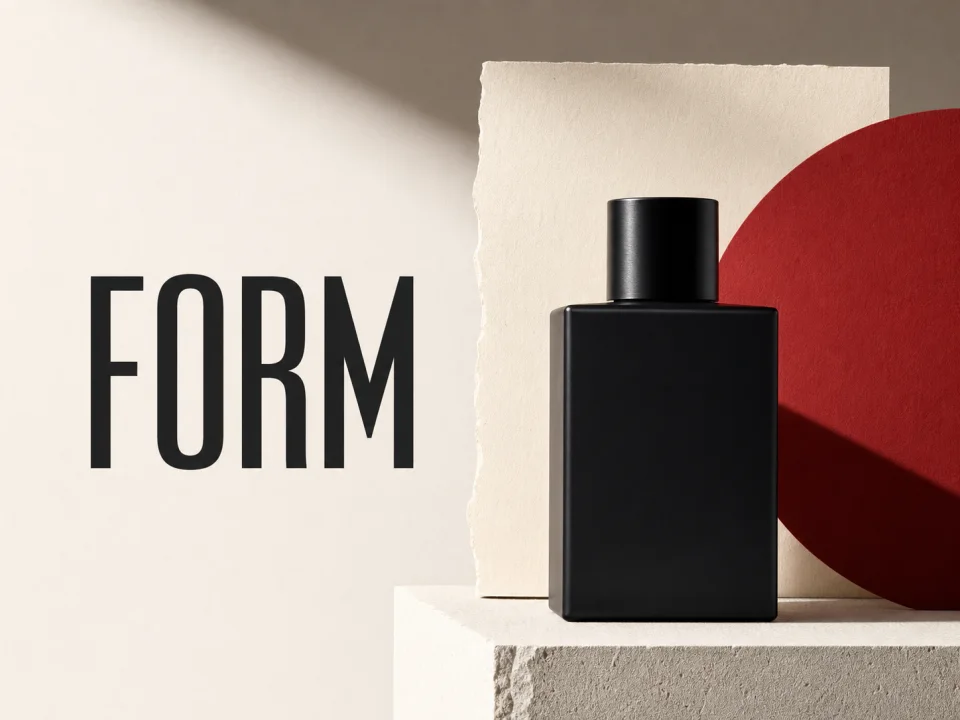
Illustrative black fragrance bottle and FORM typography example for a GPT Image 2 prompt

See a GPT Image 2 prompt become a design direction

This model showcase demonstrates how a clear product brief can become a composed visual: a dark bottle, a strong wordmark, and clean space for a campaign. It is an illustrative GPT Image 2 example, not a promise of identical results. Use the iLoveAIImg workbench above to test your own brief and inspect the lettering, edges, and details before downloading.

Control the decisions that shape the image

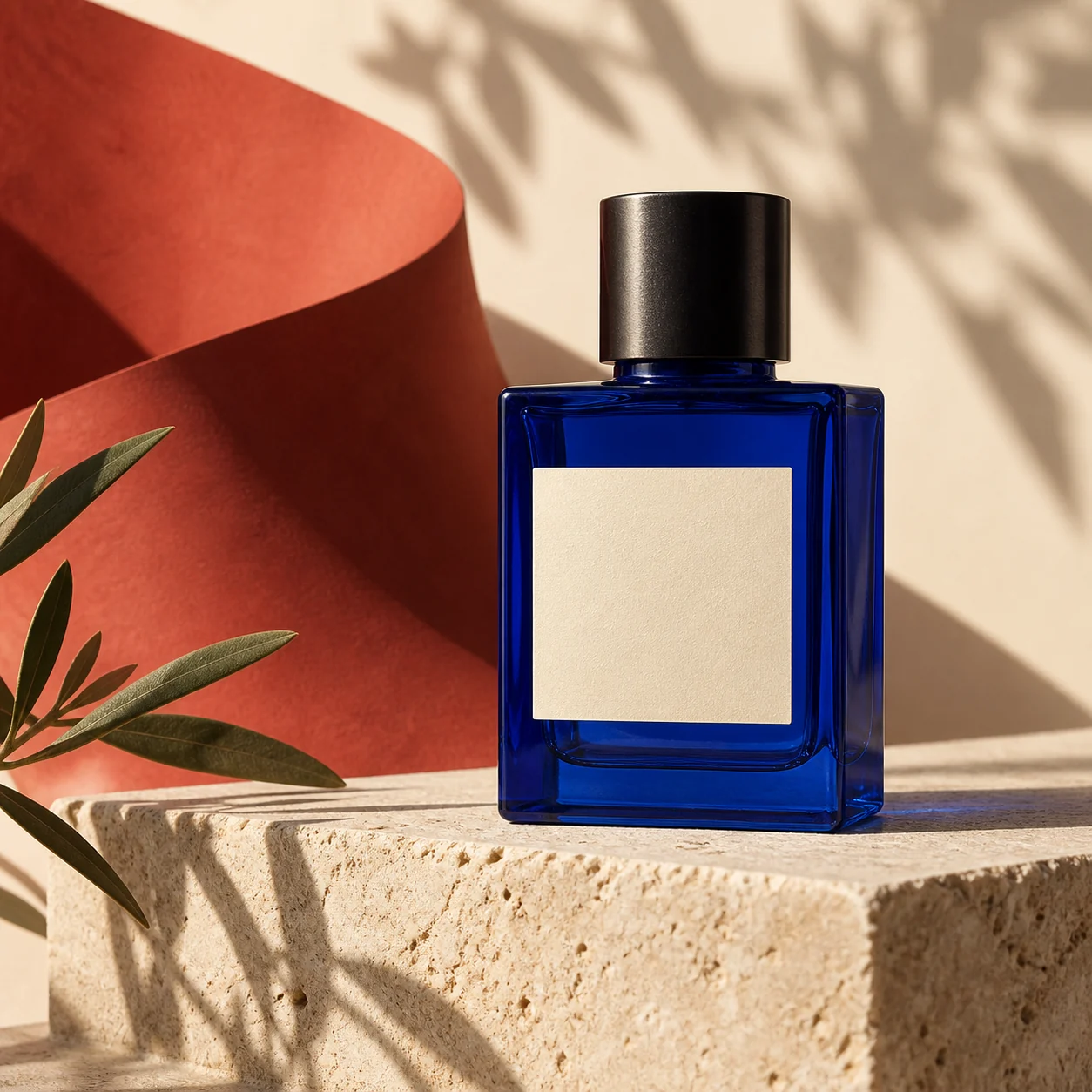
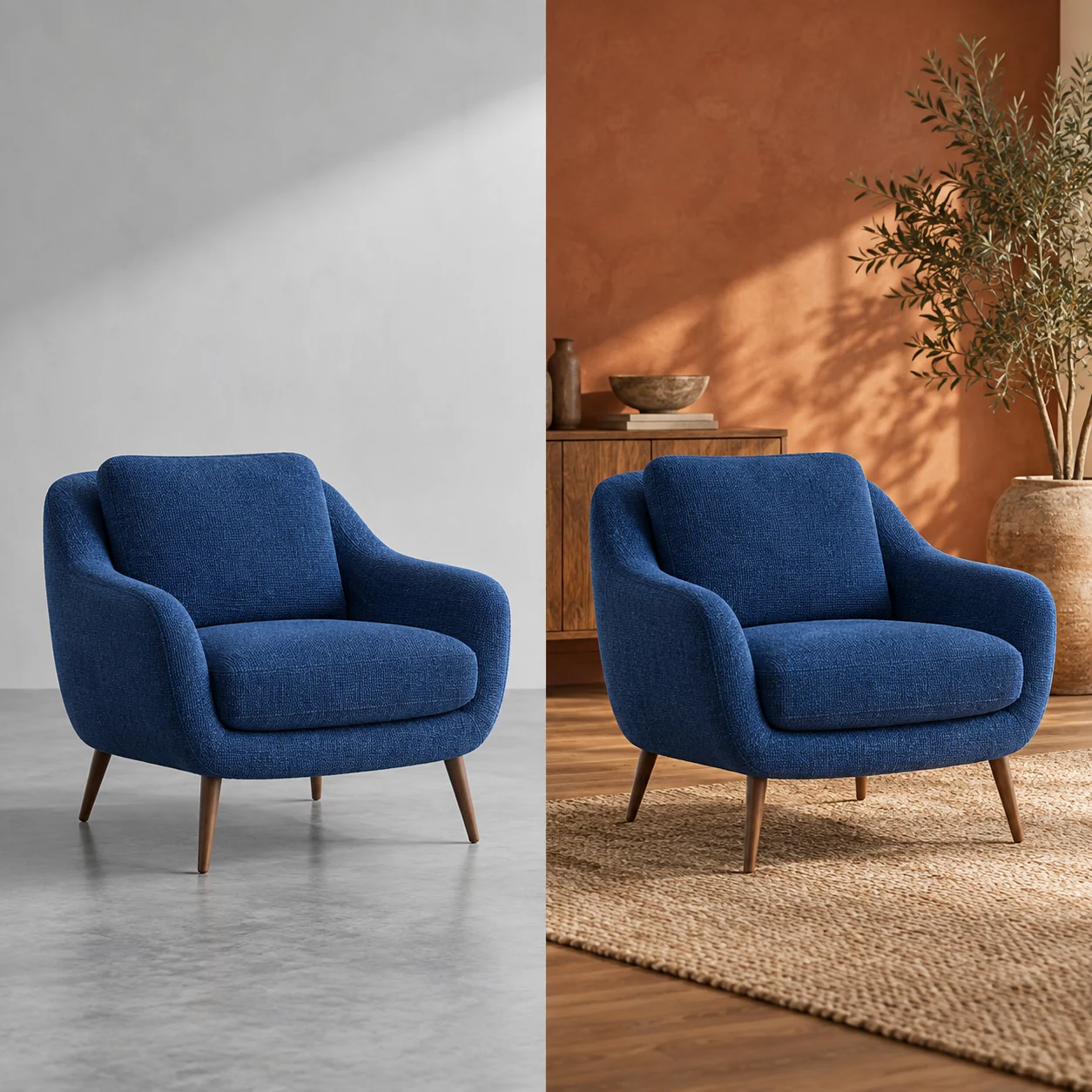
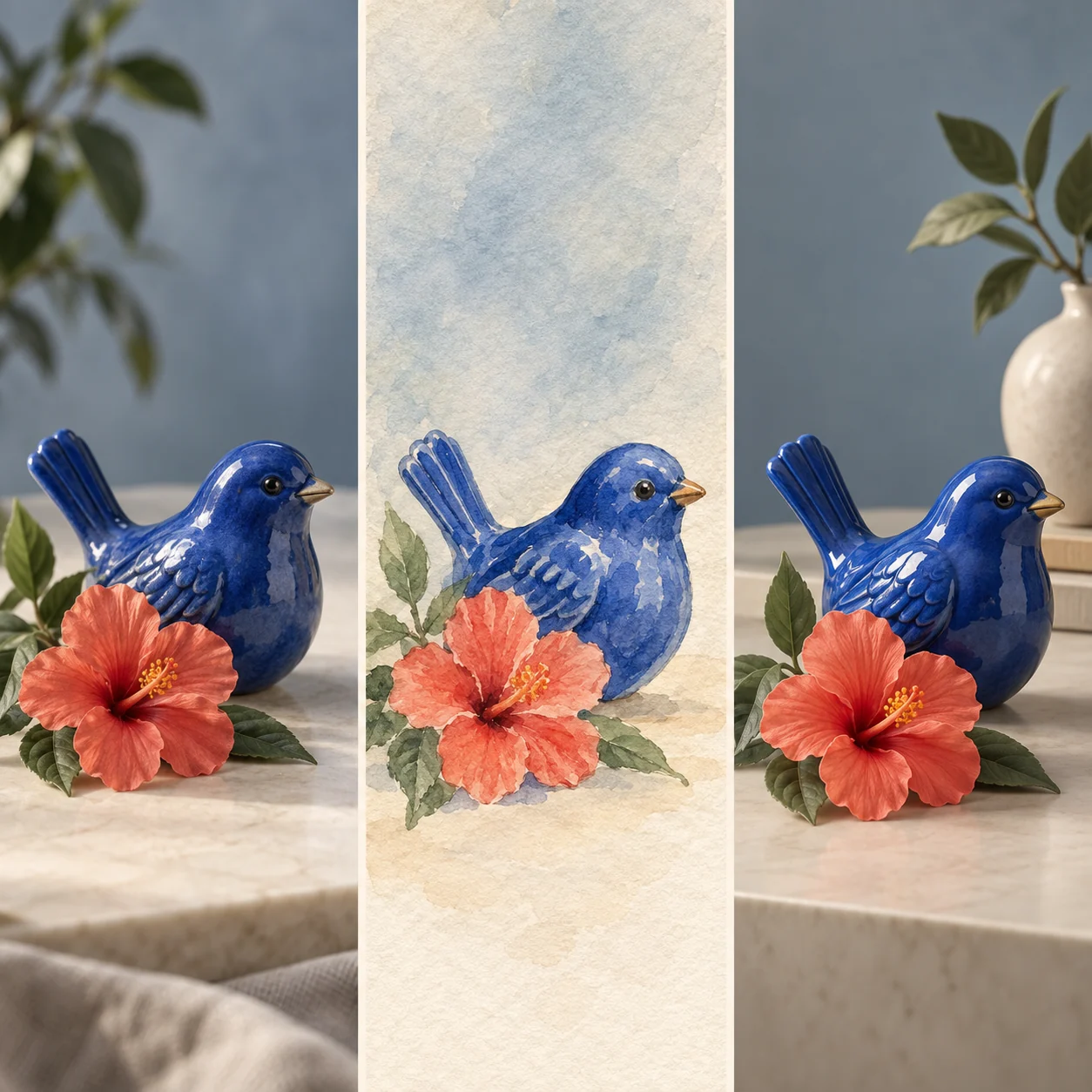
GPT Image 2 works best when the brief says what matters: framing, visual language, and the detail the viewer should notice. These visual boards are illustrative directions, not benchmarks or your generated result; the iLoveAIImg workbench shows the current settings and result for your own task.

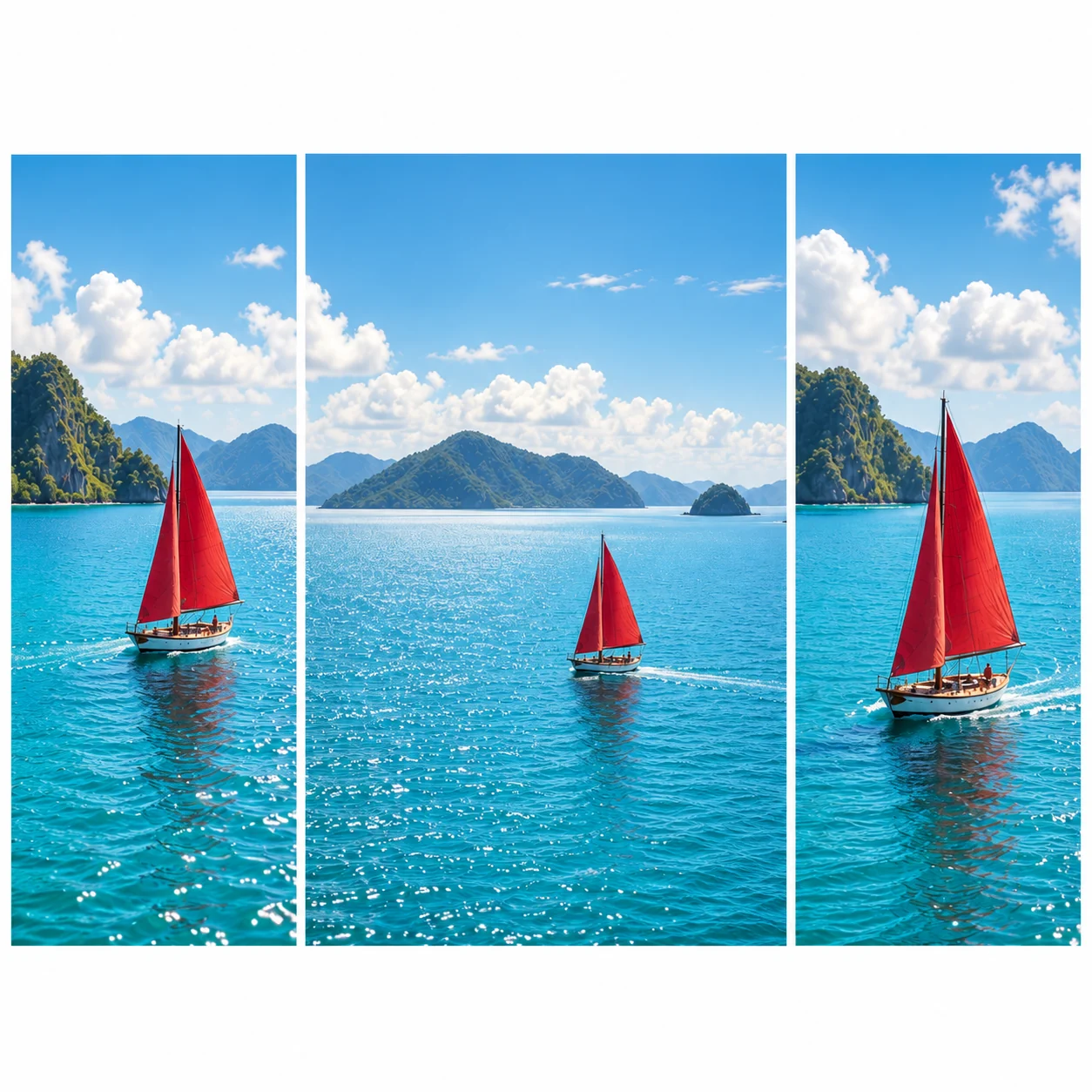
One red-sailed boat composed as square, wide, and portrait coastal image cropsThe same cobalt-blue ceramic bird and coral flower shown as photo, watercolor, and 3D art

Choose a frame for the final use

Select a supported shape in iLoveAIImg before you generate. A square product tile, a wide campaign image, and a portrait social post give the same subject different jobs. GPT Image 2 can follow the framing direction, but review the crop and the space around the subject before you publish.

Ask for readable words, then inspect them

Put short copy in quotation marks, describe its placement, and say what must not be added. GPT Image 2 is useful for text-rich visual directions, while iLoveAIImg reminds you to inspect every letter, logo, and small label in the finished image.

Preserve what makes the reference useful

When you add a reference in iLoveAIImg, name the subject, color, pose, or composition to keep and the single change to make. GPT Image 2 can still reinterpret fine details, so compare the output with the source before you treat the edit as final.

Write a GPT Image 2 brief that answers a visual question

A useful AI image generator prompt is less about length than decisions. Start with the subject, setting, light, and style; add layout or text only when it changes the intended result. iLoveAIImg keeps the prompt close to the result so the next GPT Image 2 attempt can focus on the difference you still need.

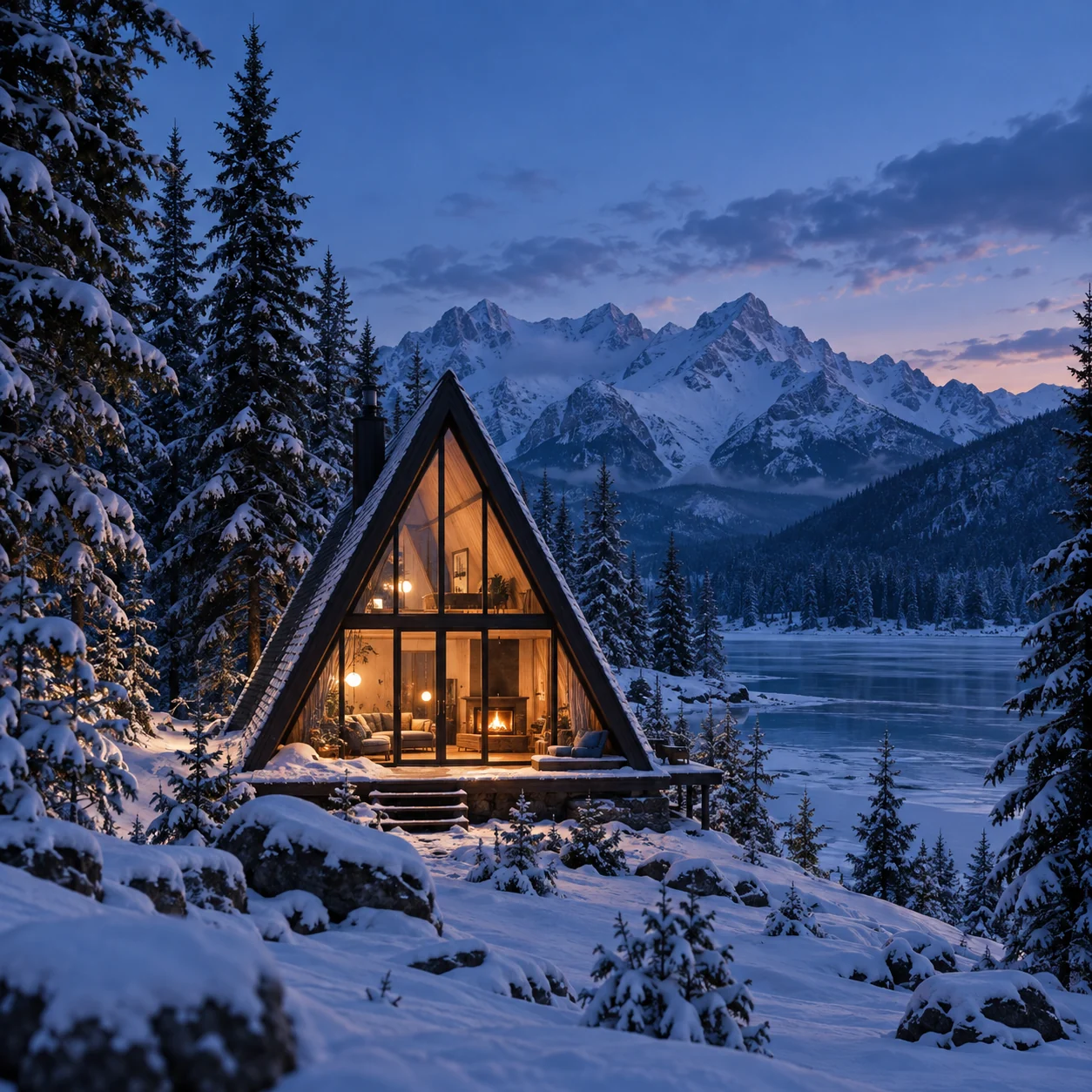
A warm glass cabin glowing in a snowy pine forest beneath blue-hour mountains

Name the subject and its job

Say what the viewer should notice first and where the image will be used. “A small glass cabin for a wide travel-cover concept” gives GPT Image 2 a subject and a reason for the composition. In iLoveAIImg, that clear first sentence gives the next prompt a useful starting point.
Add only the choices that change the result

Follow with the setting, light, palette, and medium. If the brief needs words, quote the exact short phrase and describe its position. In iLoveAIImg, adjust one clause after each result instead of rewriting a useful direction from scratch.

From a GPT Image 2 idea to a file you can use

iLoveAIImg keeps the path short: describe the image, review what changed, and download the version that fits. The examples below show practical creative directions; they are not guaranteed GPT Image 2 outputs.

01 / 03

Describe the subject and its job

Open the GPT Image 2 generator in iLoveAIImg and write one clear brief. Include the subject, intended use, setting, and visual mood. Add optional references when a subject, color, or composition needs more guidance than words can provide.

Write your brief
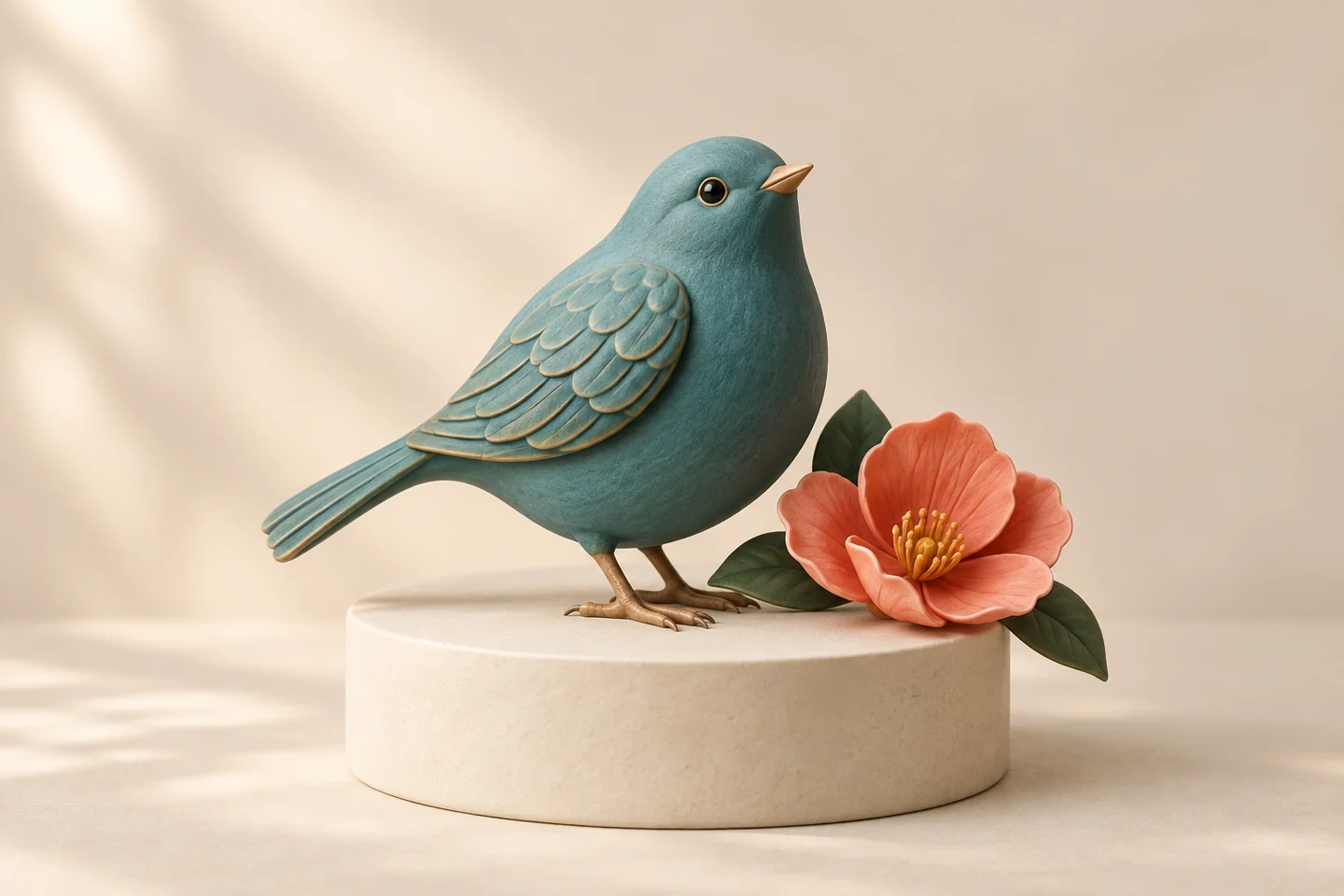
Teal ceramic bird and coral flower presented as a finished visual direction
02 / 03

Set the frame and refine one choice

Choose a supported image shape and resolution, then submit when the credit quote fits the task. Review the GPT Image 2 result in the iLoveAIImg workbench for composition, text, faces, and the details that matter. If it is close, change one instruction rather than losing the useful parts of the brief.

Review a result
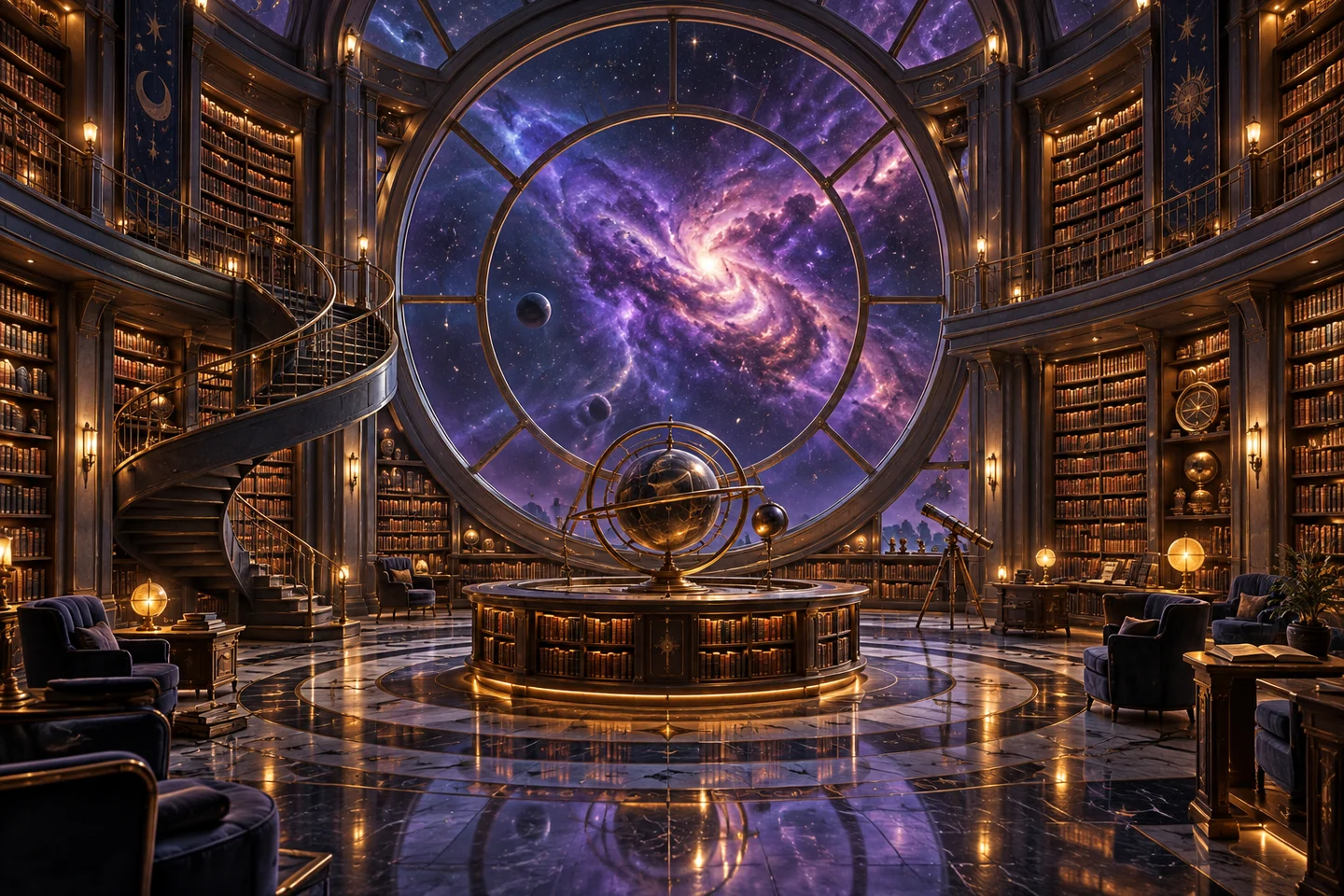
Cosmic library scene with a centered window, shelves, and a consistent symmetrical composition
03 / 03

Keep the version that fits the job

When the result works for your purpose, download it from the workbench. iLoveAIImg also lets you continue from a version when the next GPT Image 2 change should build on what already works. Keep a local copy of important images and review the full-size file before sharing.

Generate with GPT Image 2
Amber bottle with citrus and rosemary arranged as a polished product image

Where GPT Image 2 can help

Choose GPT Image 2 when the image needs a clear brief, a controlled composition, or a meaningful edit. iLoveAIImg gives you a practical place to test the direction before you download a version for your next task.

Product scenes

In iLoveAIImg, build a product concept with a chosen surface, light, camera angle, and room for campaign copy. Use a reference when the shape or color of an existing item matters.

Posters and social layouts

Describe the headline, hierarchy, margins, and visual elements for a poster or social creative. Inspect the final text and use your design tool for any typography that must be exact.

Characters and visual concepts

Explore a character, environment, cover, or story frame when you want a concrete direction before investing in a full production. Keep the prompt focused on the scene decision you are testing.

Reference-led variations

Start from a reference in iLoveAIImg when identity, palette, or framing needs to carry into another setting. State what should stay, what should change, and what the viewer should notice next.

More images. Better value.

Choose monthly, yearly, or one-time credits.

Start free

$0

No payment details needed

Daily allowance · up to
3 images / day · 6 credits

A small daily allowance for occasional ideas.

  • Daily credits expire; unused credits do not roll over
  • Images saved for only 7 days
  • Basic storage space

Pro

Save 50%

Recommended for regular creation

$10.00/month

$120.00 billed yearly

GPT Image 2 · 1K · up to
6,000 images

For individual creators making images throughout the month.

  • Supports more models
  • Annual credits valid for 12 months
  • Permanent storage for all your assets
  • Expanded workspace storage
  • 12,000 credits delivered upfront each year
  • Full downloads, no added watermark

Max

Save 50%
$40.00/month

$480.00 billed yearly

GPT Image 2 · 1K · up to
30,000 images

For higher-volume creation, more iterations, and larger image batches.

  • Supports more models
  • Annual credits valid for 12 months
  • Permanent storage for all your assets
  • Largest workspace storage
  • 60,000 credits delivered upfront each year
  • Full downloads, no added watermark

Questions about GPT Image 2 on iLoveAIImg

Understand the model entry, reference workflow, output choices, credits, and what to review before you use an image.

What is GPT Image 2?

GPT Image 2 is an image generation model for creating images from detailed text prompts and working with image inputs. This iLoveAIImg page exposes the configured GPT Image 2 integration through ApiMart, with a required prompt and optional reference images.

Can I use GPT Image 2 without a reference image?

Yes. The GPT Image 2 generator requires a text prompt, while a reference image is optional. Start with the subject, setting, lighting, and intended use; add a reference when words alone do not hold the subject, color, or framing steady.

Can GPT Image 2 edit an existing image?

You can add optional reference images and describe what to preserve or change in the iLoveAIImg workbench. The result may reinterpret faces, text, logos, or fine details, so compare it with the source and keep the original before downloading a final version.

Which image sizes and shapes are available?

The GPT Image 2 workbench in iLoveAIImg exposes 1K, 2K, and 4K output choices together with the supported aspect ratios for this integration. The available credit quote appears before submission; choose the shape and resolution that match the place where the image will live.

Will GPT Image 2 render my words and logos exactly?

GPT Image 2 can be useful for text-rich design directions, but exact lettering is not guaranteed. Use the iLoveAIImg preview to quote short copy in the prompt, describe its position, and inspect every character and logo in the full-size result before publishing.

How do credits work for GPT Image 2?

iLoveAIImg shows the current credit cost for the selected GPT Image 2 resolution before you submit. Your ability to start depends on the available balance and the current usage rules; no credit is deducted for a request that is rejected before task creation.

Is iLoveAIImg an OpenAI product?

No. iLoveAIImg is an independent service that accesses GPT Image 2 through ApiMart and is not affiliated with or endorsed by OpenAI. The upstream model documentation can describe capabilities beyond the controls exposed on this page.

Are the images on this page my GPT Image 2 results?

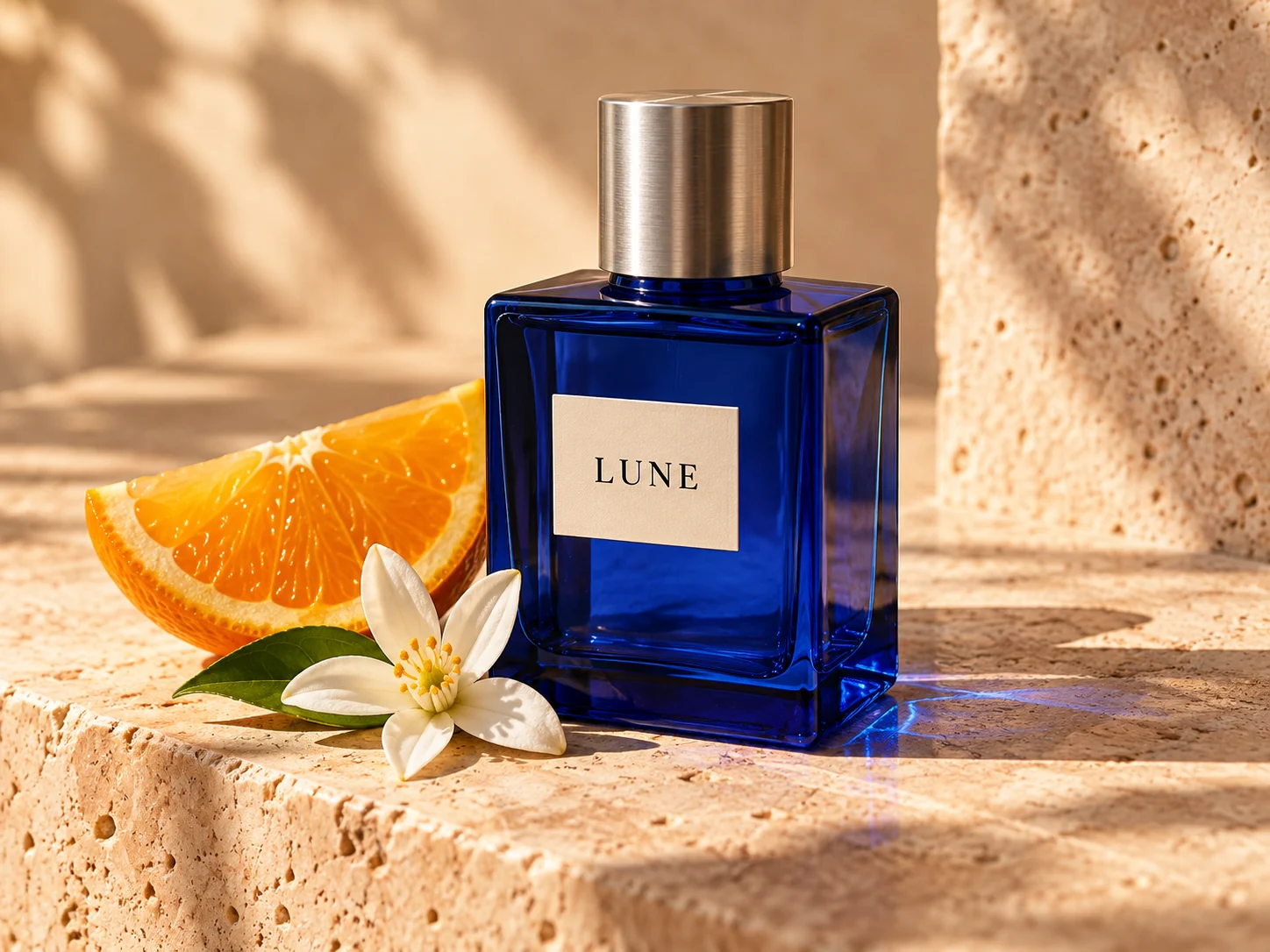
No. The product showcase is a visual example, while the framing, style, prompt, and workflow boards explain the kinds of directions you can test. Your GPT Image 2 result appears in the iLoveAIImg workbench after you submit your own prompt, and it should be reviewed before use.

Give GPT Image 2 a brief worth testing

Open the GPT Image 2 generator in iLoveAIImg, name the subject and intended use, choose a supported shape, and review your first result before you download it.