
Product photos
Use an ai background remover to remove photo background from a product shot before preparing a marketplace listing, comparison page, or new product scene.
Upload one photo to separate its subject from the original background, inspect the edges on a checkerboard preview, and download the cutout as a transparent PNG.
or drop an image, paste an image
PNG, JPG, or WebP up to 10 MBCredits for this run: 5
 OriginalTransparent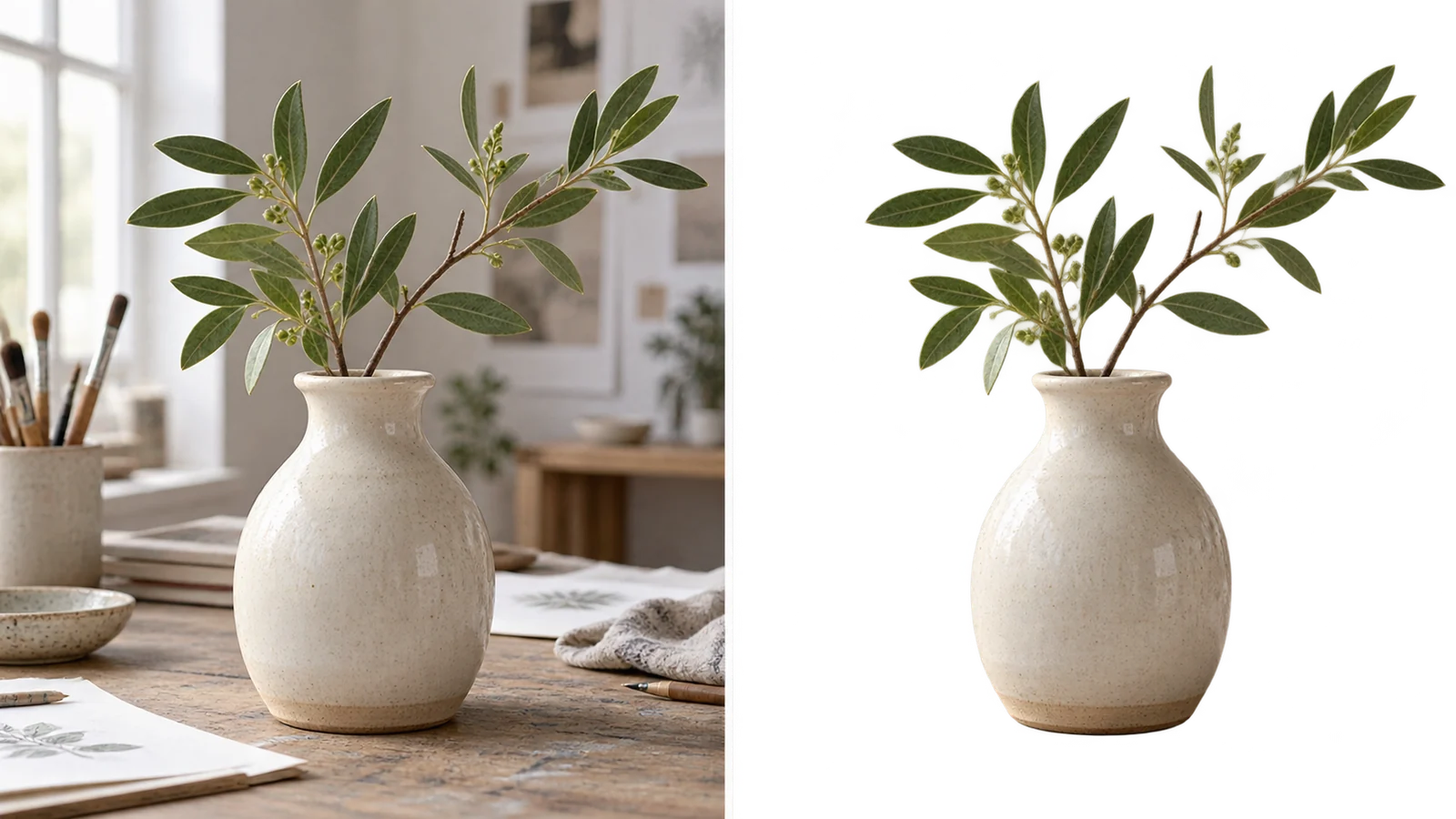
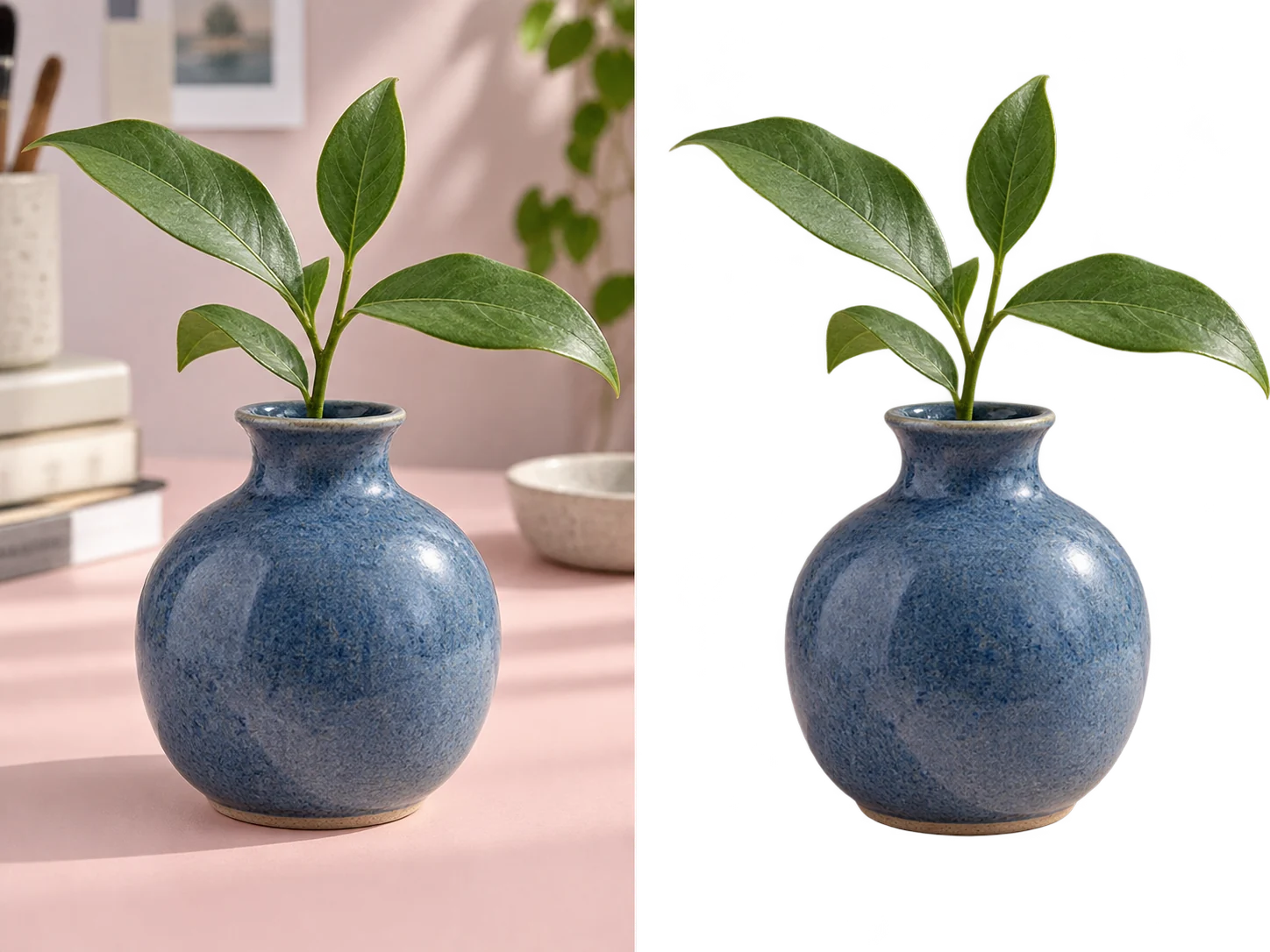
This illustrative before-and-after shows the job clearly: keep the ceramic vase, discard the surrounding scene, and preserve a cutout that can move into another design. The ai background remover on this page starts with one uploaded photo and returns a transparent PNG; inspect your own subject edges before you download.
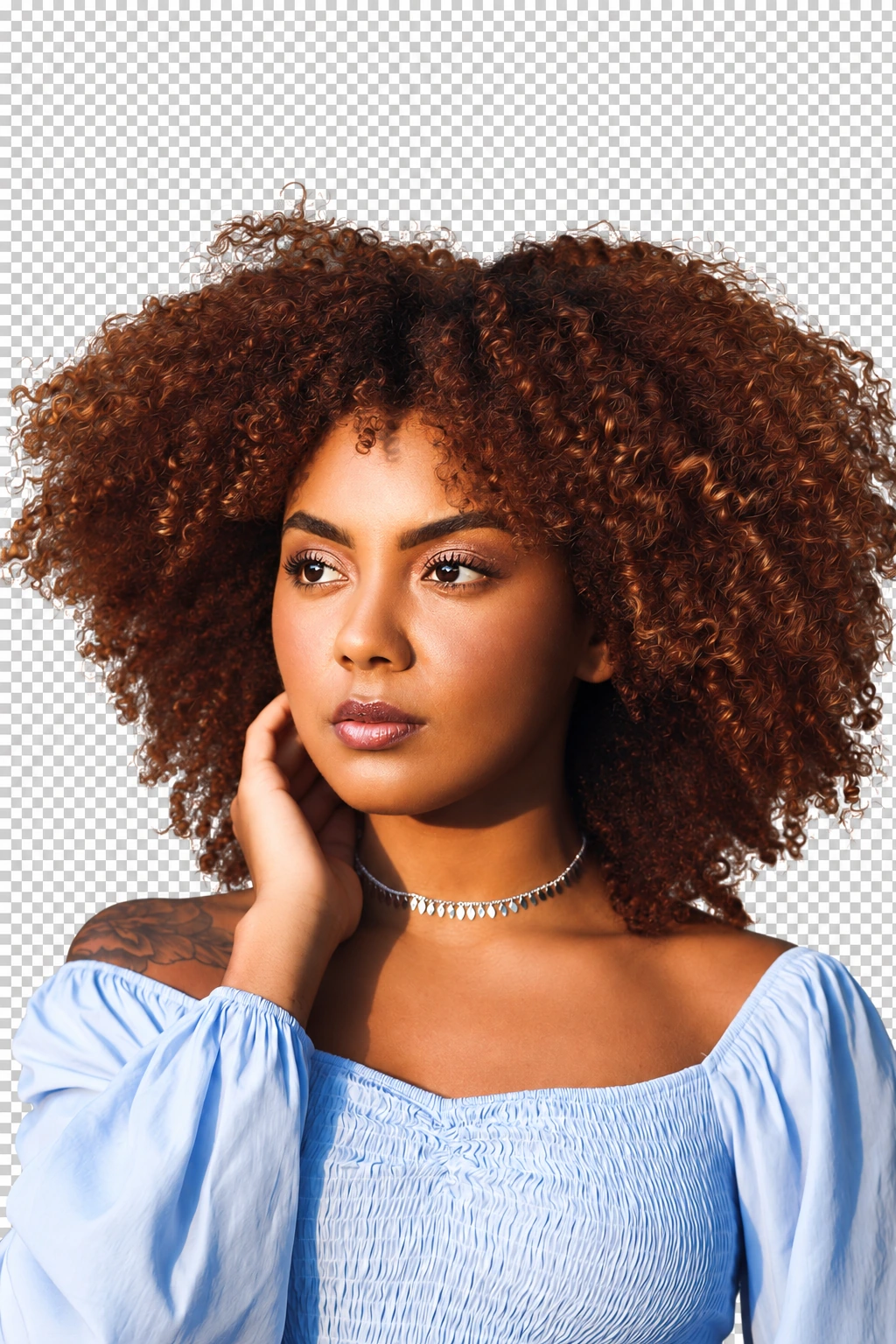
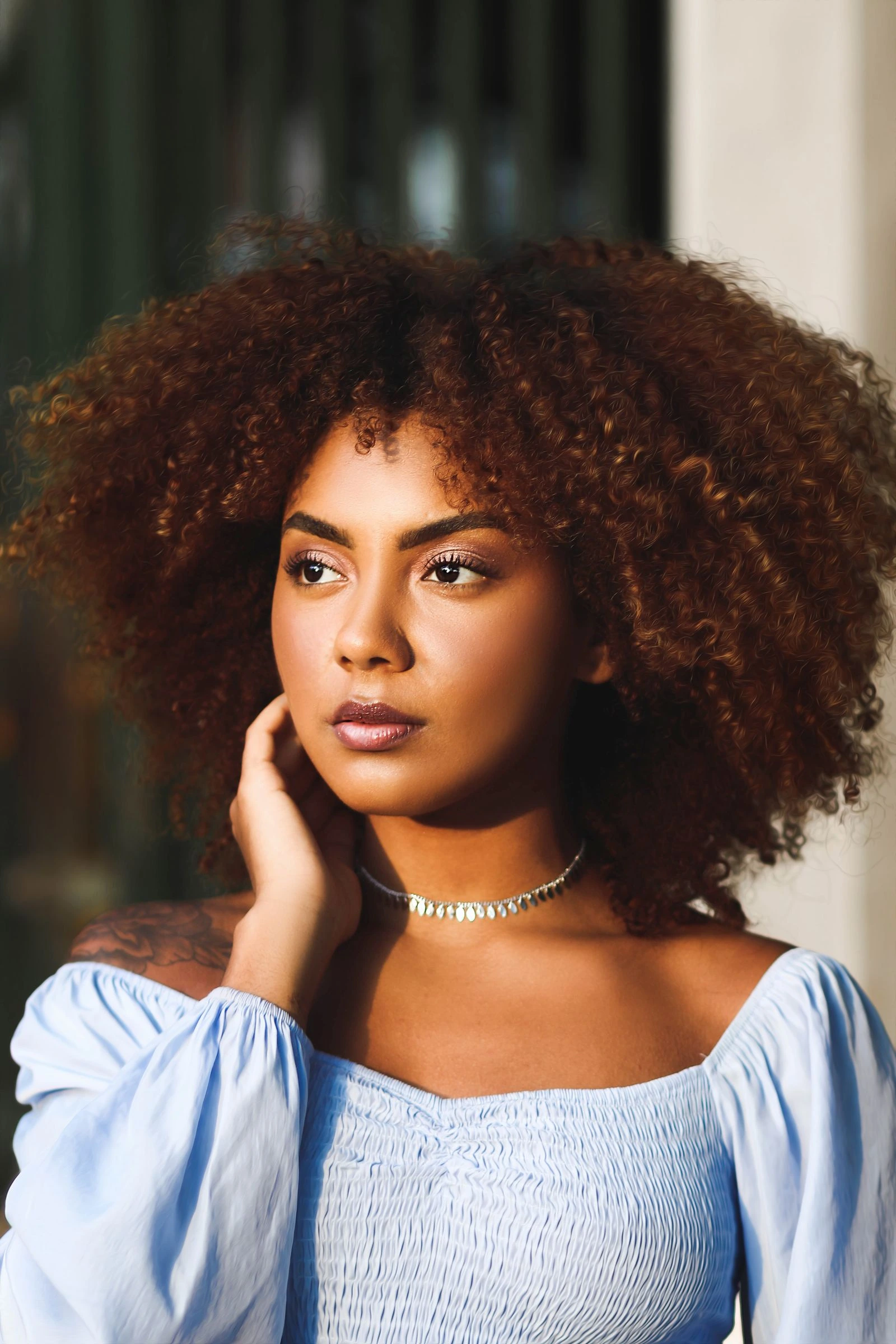
Different images need different checks. Review product photos, portraits, and design assets to see what an ai background remover should preserve: the subject shape, fine edges, and usable empty space. These are illustrative examples, not generated results from your upload.


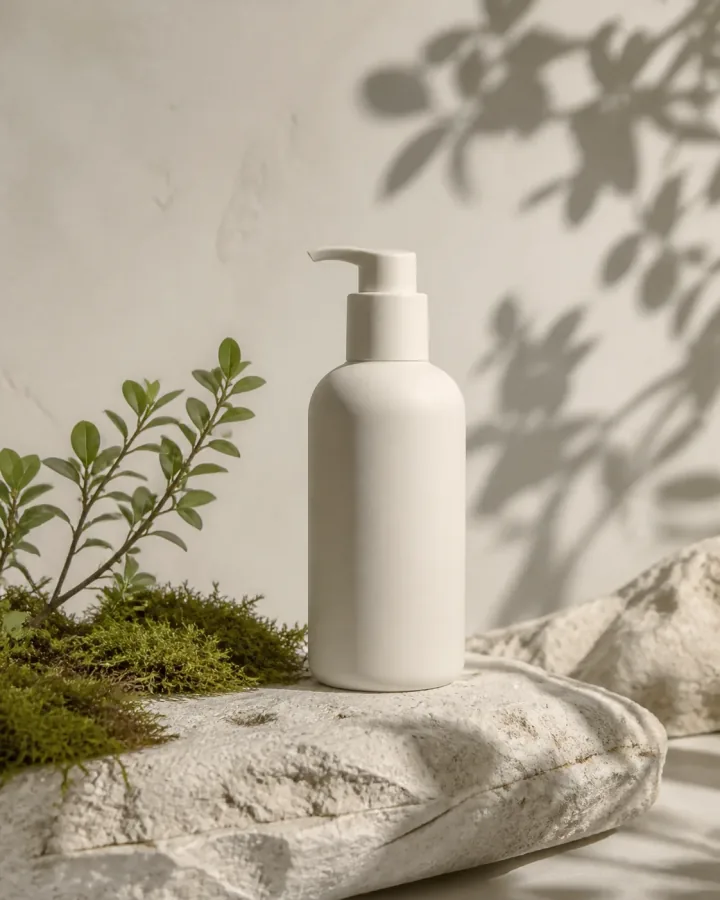
An ai background remover is useful when the subject needs to leave its original setting and become a reusable layer. Start with a photo, check what the cutout kept, then choose the destination that matches your work.
Use an ai background remover to remove photo background from a product shot before preparing a marketplace listing, comparison page, or new product scene.
Use an ai background remover to separate a person from a room for a profile image, CV, speaker card, or campaign layout. Review hair and clothing edges before export.
Make a cutout for a thumbnail, social post, presentation, or collage when you need to control the surrounding color and copy space.
Separate a logo, illustration, or simple graphic from a distracting backdrop before placing it in a new design. Flat, high-contrast shapes are easier to review.
Use Free remove background AI to prepare a consistent subject layer for product listings. Compare the source and cutout so shadows or background color do not remain where you need transparency.
For banners and campaign visuals, use an ai background remover to create a subject layer, then plan the crop and empty space around your copy.
After Free remove background AI separates the subject, the transparent PNG can stay as the final asset or become the first layer in a new composition. The next choice is how you want to use the cutout.
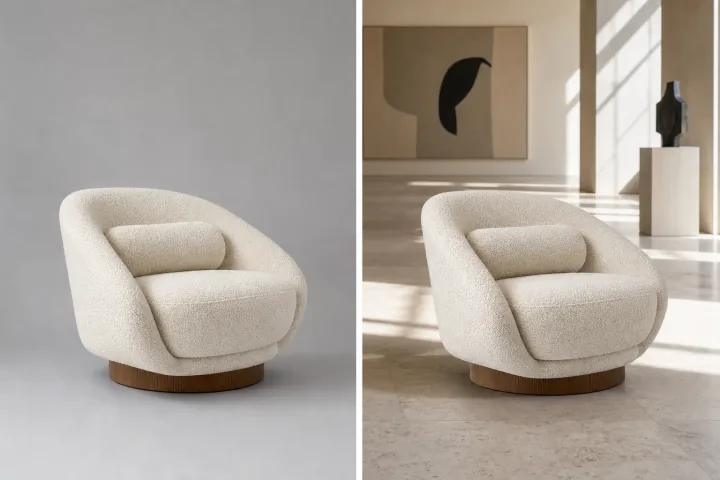
Open AI Photo Editor when you want to place the cutout in a room, color field, or new visual setting.
Use the isolated subject as the starting point for a product scene, banner, or campaign direction.
Use Free remove background AI to create a transparent PNG, then inspect the checkerboard preview and edge detail before downloading.
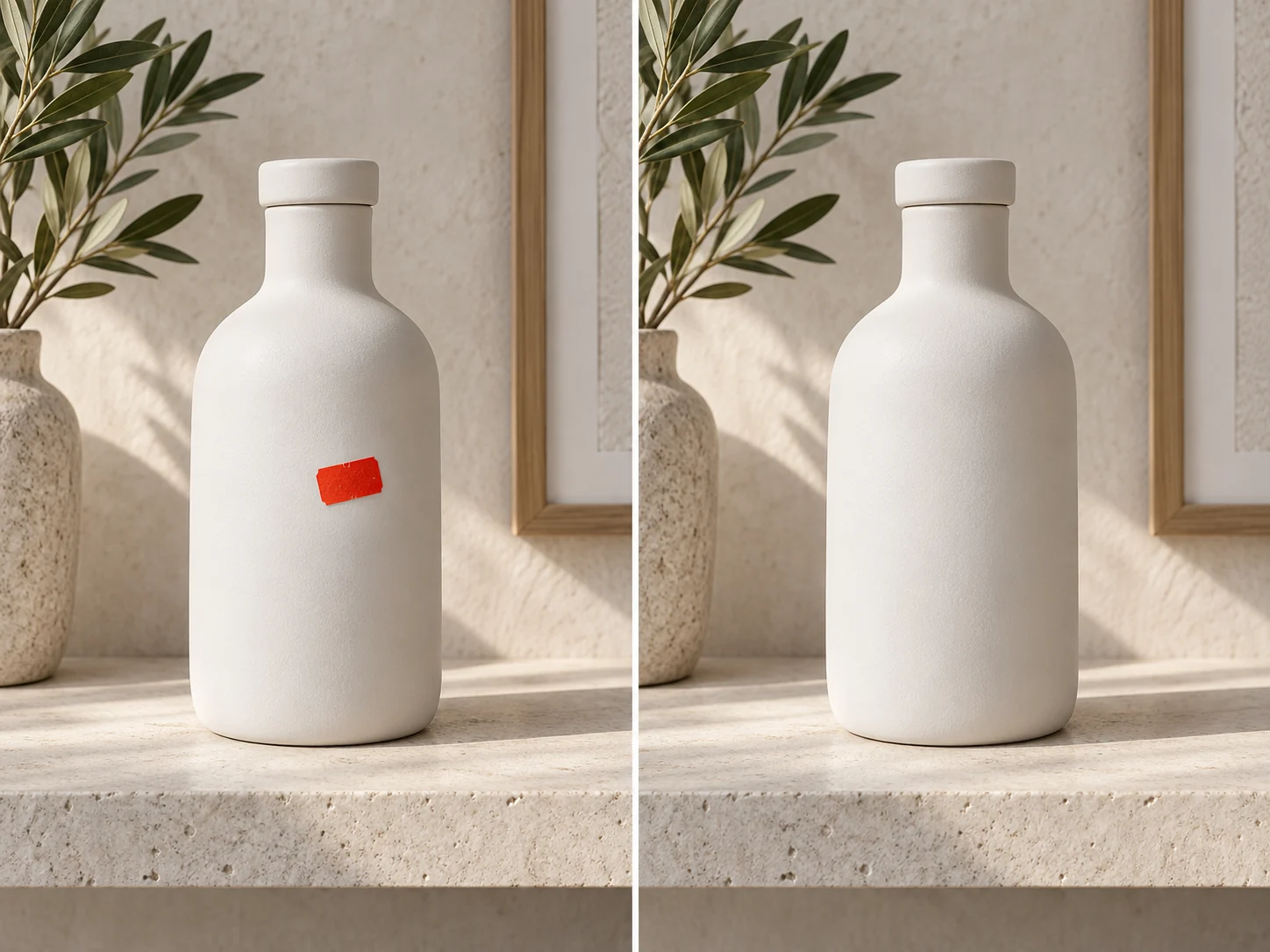
If the source still contains one unwanted object, keep the cutout and open a focused image edit for that separate change.
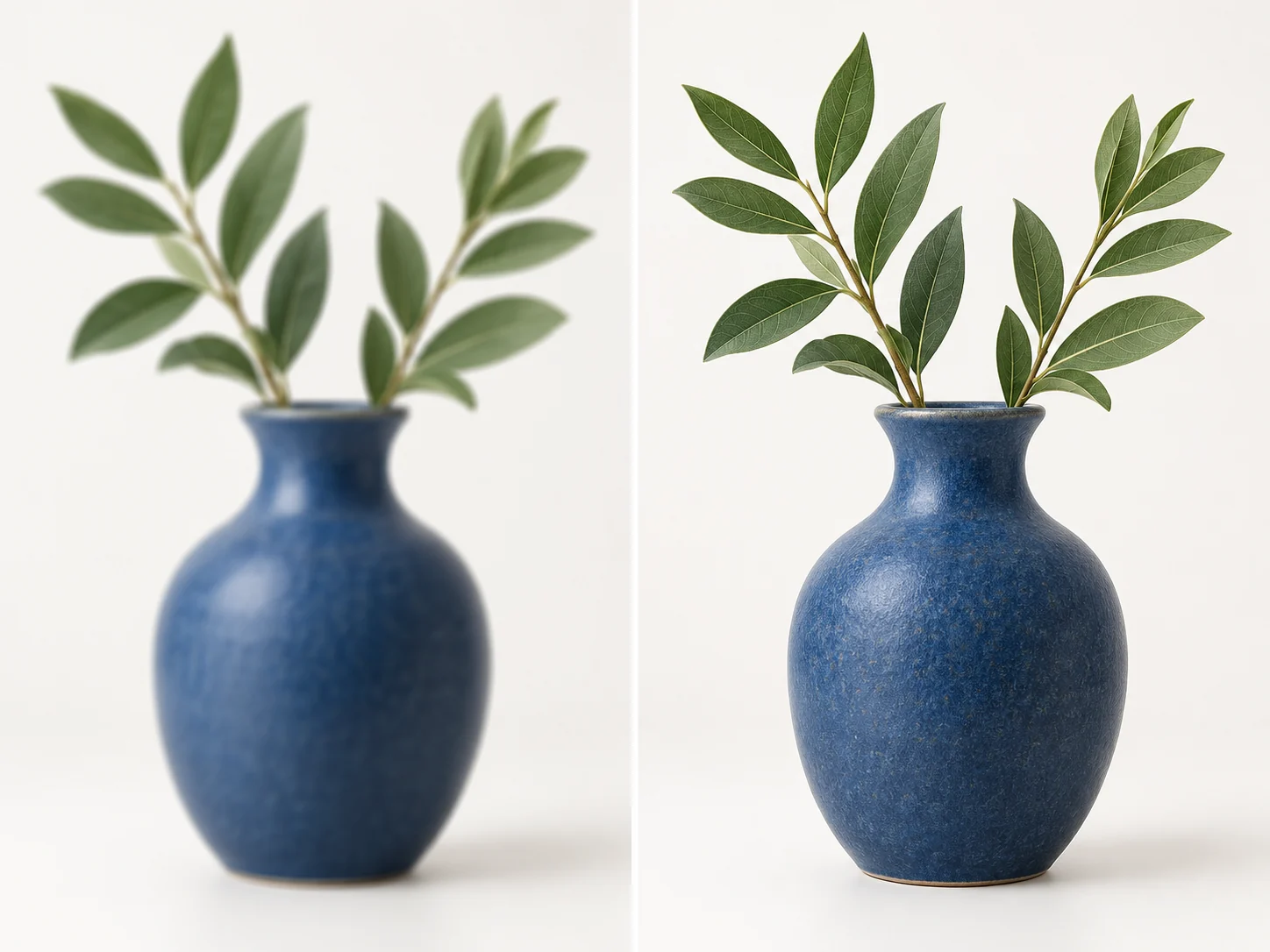
Check the cutout at its final display size; if more detail is needed, use a separate image-quality workflow rather than expecting background removal to sharpen it.

Place the subject in a campaign layout with a deliberate crop, background, and space for copy.
Keep the transparent result from Free remove background AI as a reusable asset, or continue in AI Photo Editor when the next step is a new setting.
Choose monthly, yearly, or one-time credits.
Start free
No payment details needed
A small daily allowance for occasional ideas.
Pro
Recommended for regular creation
Billed monthly
For individual creators making images throughout the month.
Max
Billed monthly
For higher-volume creation, more iterations, and larger image batches.
Start free
No payment details needed
A small daily allowance for occasional ideas.
Pro
Save 50%Recommended for regular creation
$120.00 billed yearly
For individual creators making images throughout the month.
Max
Save 50%$480.00 billed yearly
For higher-volume creation, more iterations, and larger image batches.
Start free
No payment details needed
A small daily allowance for occasional ideas.
1,500 credits
One-time payment
Add credits for a specific project without starting a subscription.
3,000 credits
One-time payment
Add credits for a specific project without starting a subscription.
This ai background remover follows a focused workflow: upload one image, inspect the transparent cutout, and decide whether the PNG is ready for your design.
You can try Free remove background AI with available free credits. The workbench shows the current credit cost before you submit, so you can decide whether to start. Free-credit availability and usage limits apply; this is not unlimited background removal.
Upload one PNG, JPG, or WebP image up to 10 MB. The tool processes the single source image you provide; choose a clear subject when possible.
It is designed to isolate the main subject and return a transparent PNG rather than a white-filled image. The checkerboard preview helps you identify transparent areas, but inspect the edges before using the file.
Product photos, portraits, objects, and other clear subjects are useful starting points. Free remove background AI can separate the main subject, but fine hair, fur, low-contrast edges, glass, and translucent objects need closer review. Zoom in on the outline against the checkerboard and compare it with the original; difficult edges may retain some original background color.
Choose a photo with the full subject in frame, enough resolution to see its outline, and visible contrast from the background. After you use an ai background remover, compare the cutout with the original on the checkerboard before downloading, especially around hair, fur, glass, and translucent objects.
After you use Free remove background AI, download the transparent PNG for your design or open AI Photo Editor when you want to place the subject in another setting or make a focused change. Review each version before keeping it.