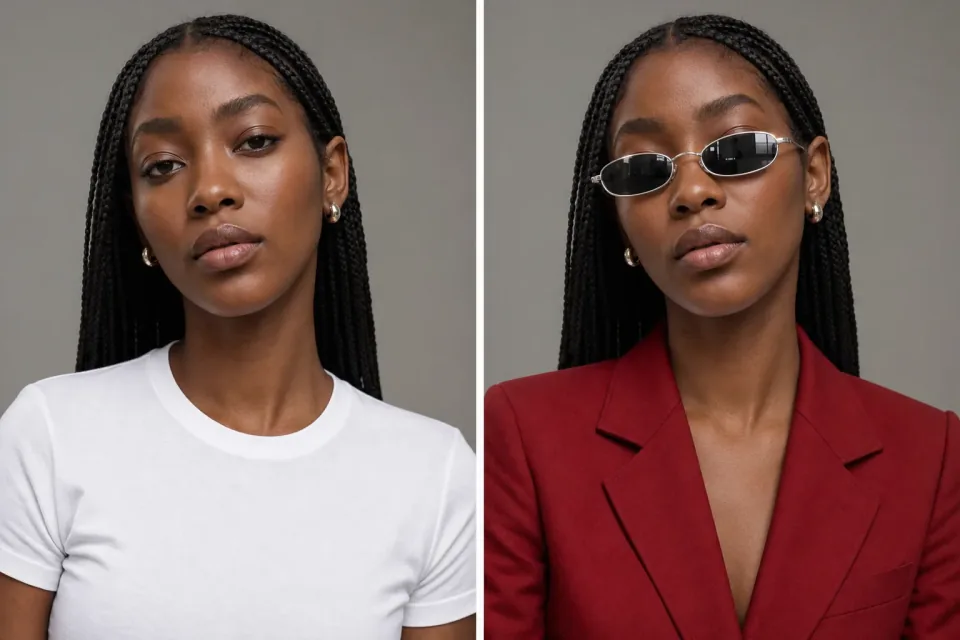
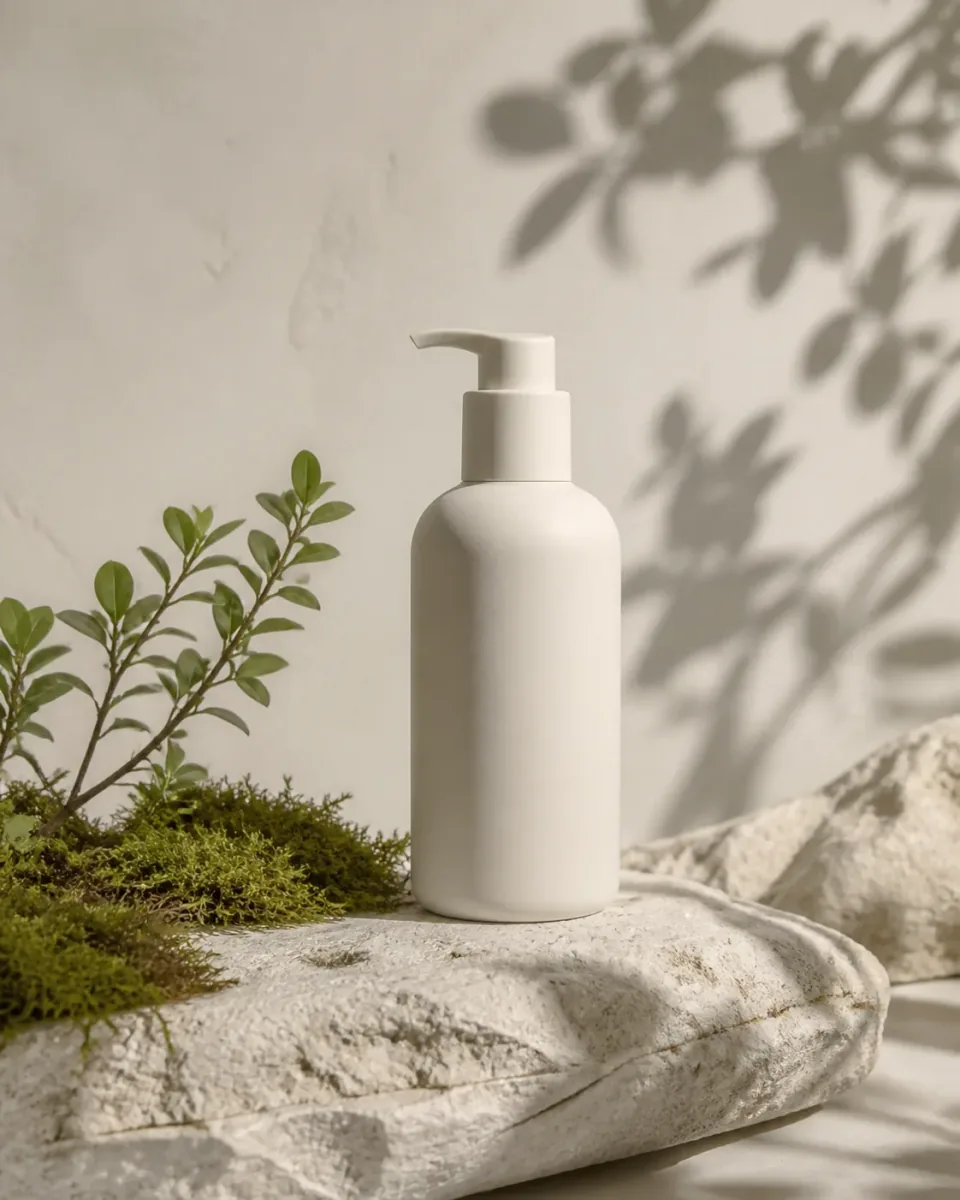
Start with the subject
Name the object, person, or scene and say what must be preserved. For GPT Image 2.5, concrete nouns and visible materials are easier to review than a stack of abstract adjectives.
Use GPT Image 2.5 to turn a clear visual brief or reference image into a product scene, poster, or focused edit. Choose a direction in the iLoveAIImg workbench, review the result, and refine what matters.
Review, continue editing, or download your results.
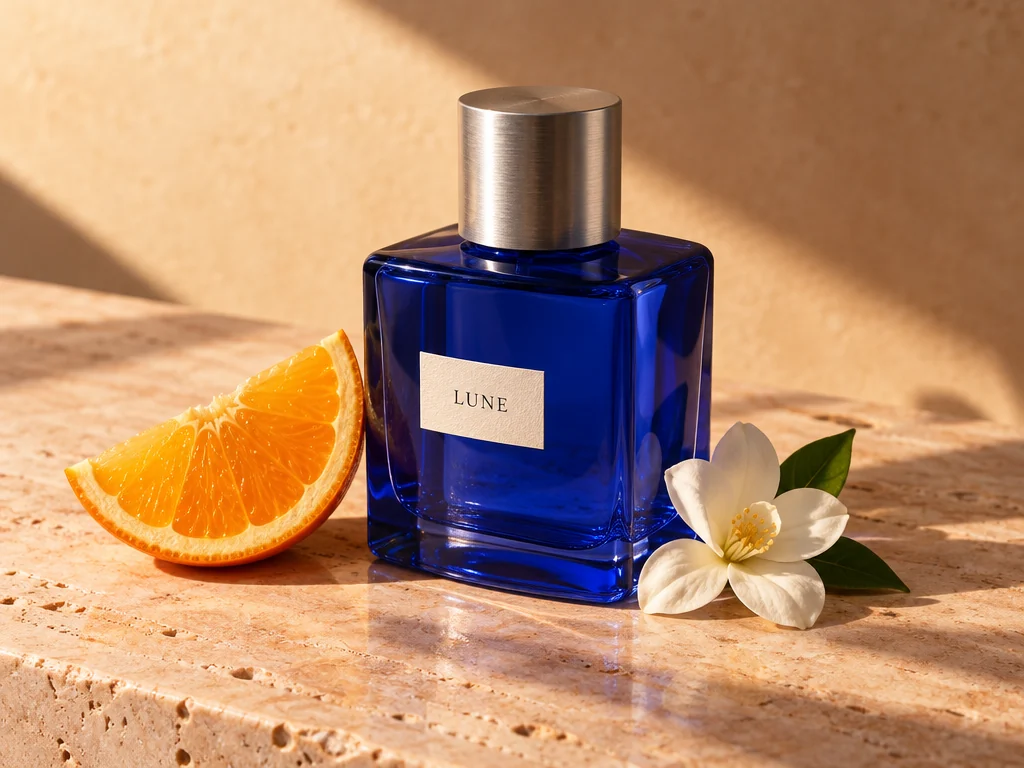
This GPT Image 2.5 example starts with a product direction: a bottle, setting, light, and intended mood. The current page uses GPT Image 2.5 Flare at medium quality. Use the image as a prompt reference, then test your own brief in the workbench. iLoveAIImg shows its current credit quote before you submit; that quote is separate from OpenAI API pricing.
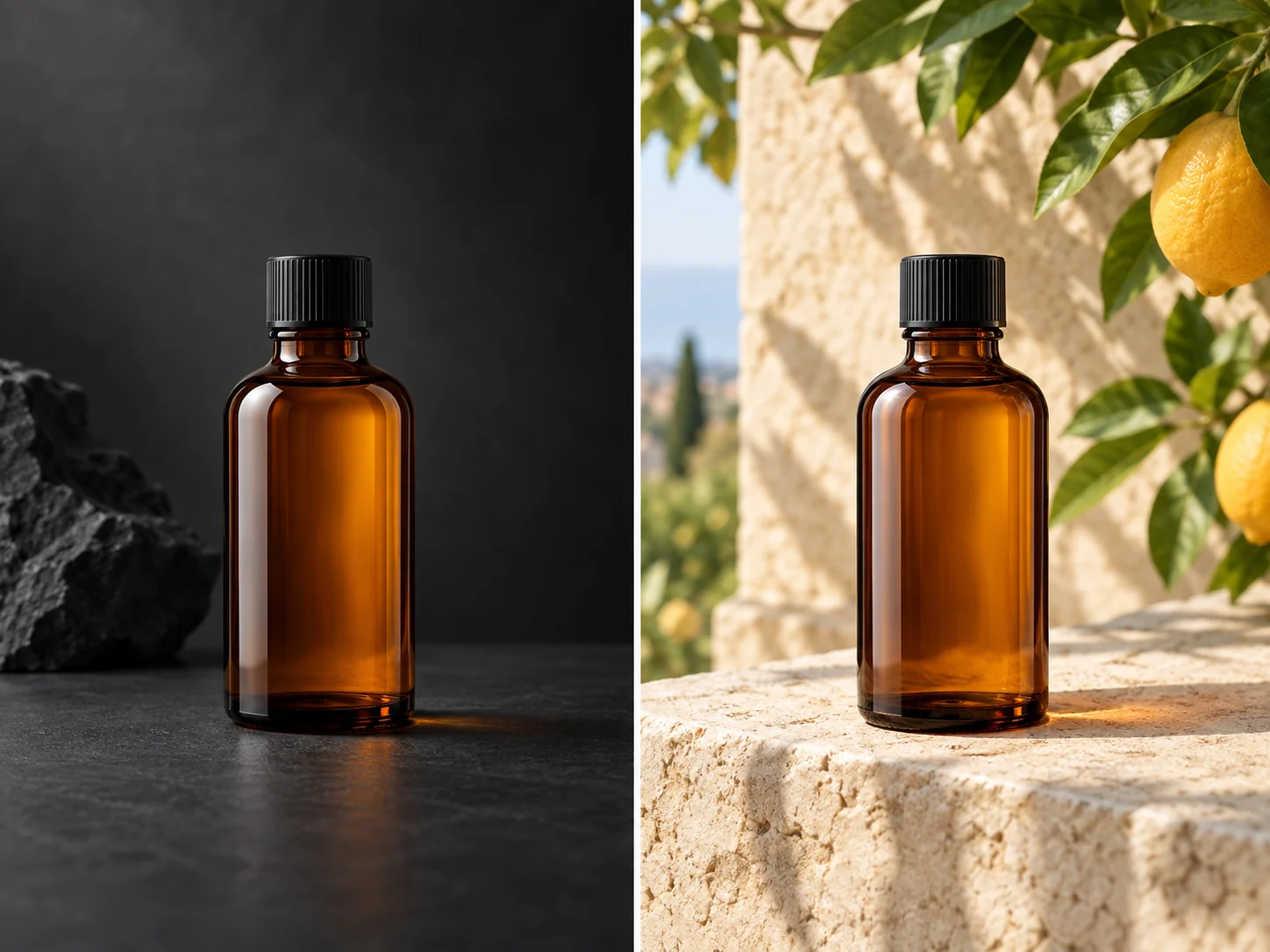
Use the GPT Image 2.5 generator when you need a new product scene, poster concept, character, or cover. Name the subject first, then add the setting, lighting, layout, and details that should stay out of the frame. iLoveAIImg keeps the prompt close to the result so you can change one decision at a time.
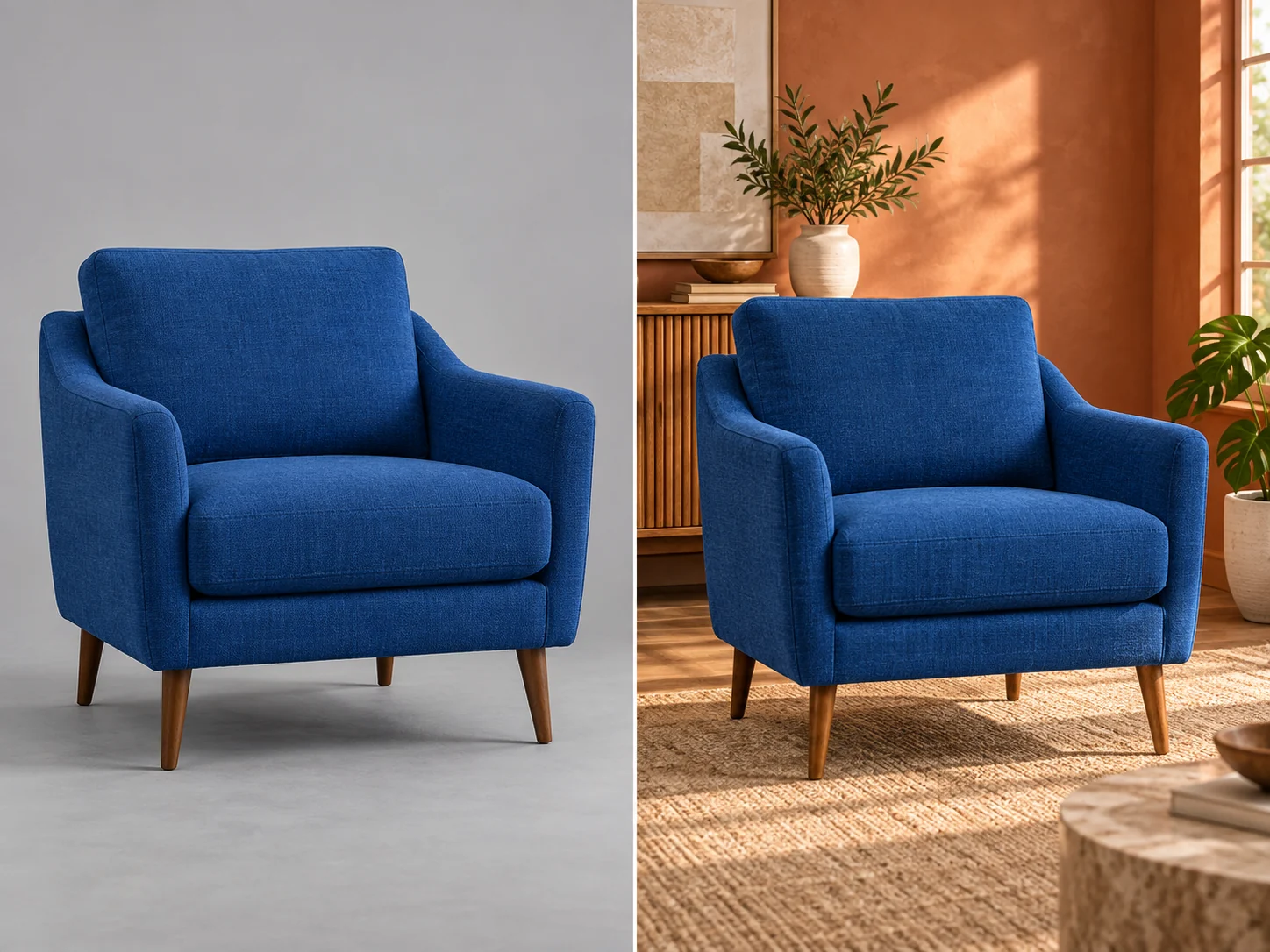
Add optional reference images when the subject, color, or framing matters. Tell GPT Image 2.5 what to preserve and what to change—such as the background, mood, or supporting objects—then compare the result with the source. iLoveAIImg gives the reference a clear next job instead of asking a new prompt to recreate everything from memory.
GPT Image 2.5 works best when the brief says what matters: framing, visual language, and the detail the viewer should notice. These visual boards are illustrative directions, not benchmarks or your generated result; the iLoveAIImg workbench shows the current settings and result for your own task.
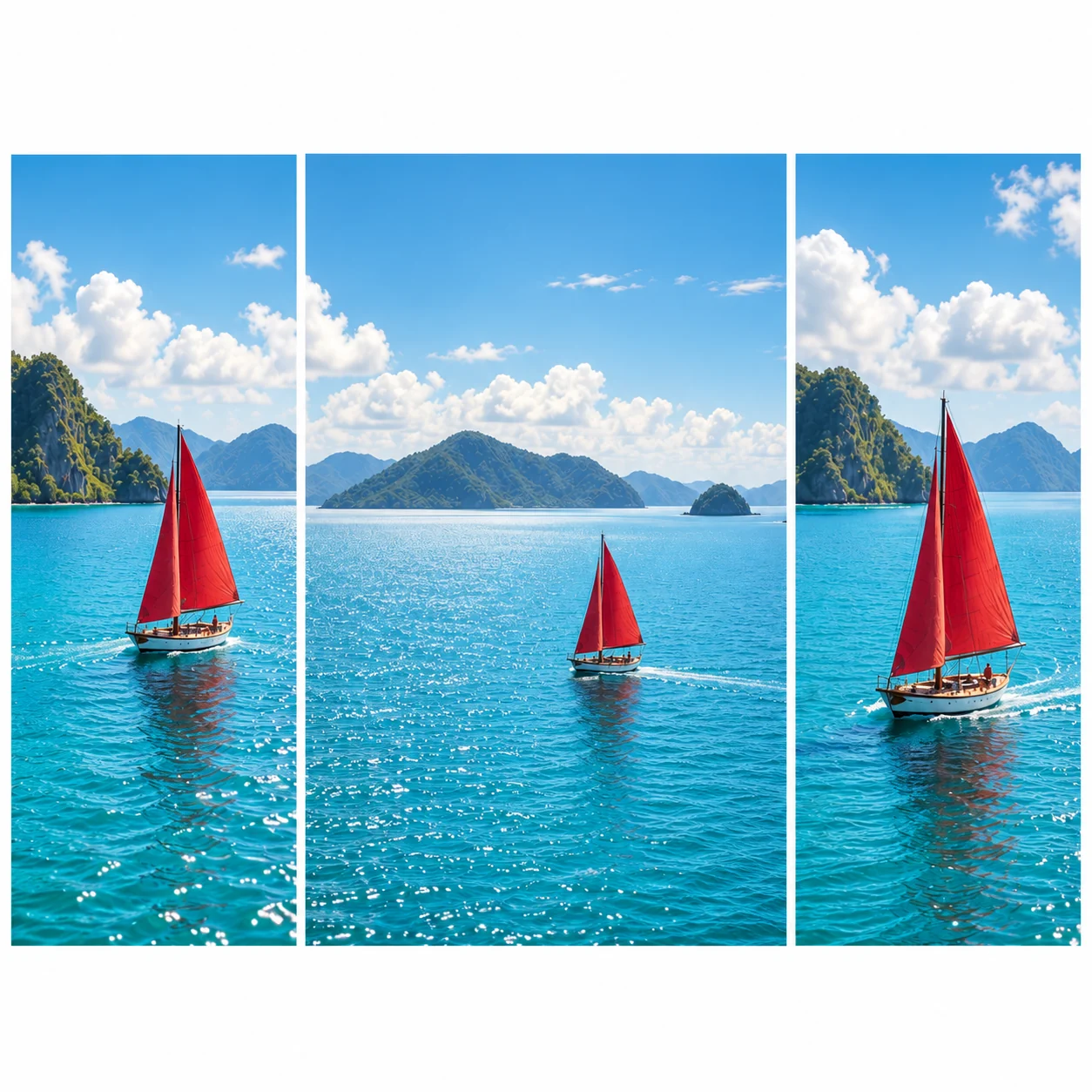
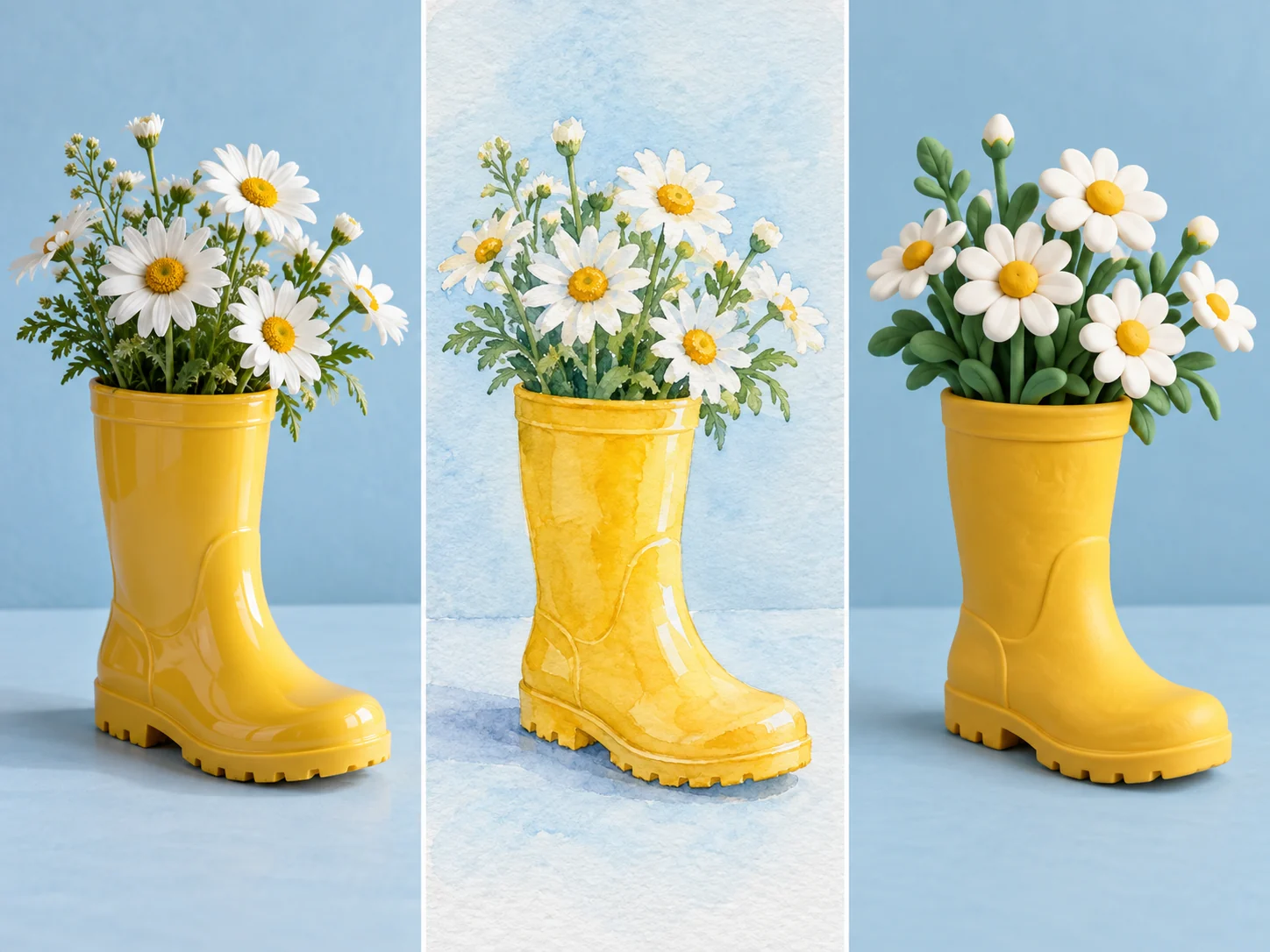
Select a supported shape in iLoveAIImg before you generate. A square product tile, a wide campaign image, and a portrait social post give the same subject different jobs. GPT Image 2.5 can follow the framing direction, but review the crop and the space around the subject before you publish.
Put short copy in quotation marks, describe its placement, and say what must not be added. GPT Image 2.5 is useful for text-rich visual directions, while iLoveAIImg reminds you to inspect every letter, logo, and small label in the finished image.
When you add a reference in iLoveAIImg, name the subject, color, pose, or composition to keep and the single change to make. GPT Image 2.5 can still reinterpret fine details, so compare the output with the source before you treat the edit as final.
A GPT Image 2.5 prompt works best when the important decisions are visible: subject, setting, light, composition, and style. You do not need a special syntax; write the image brief like a direction you could review.
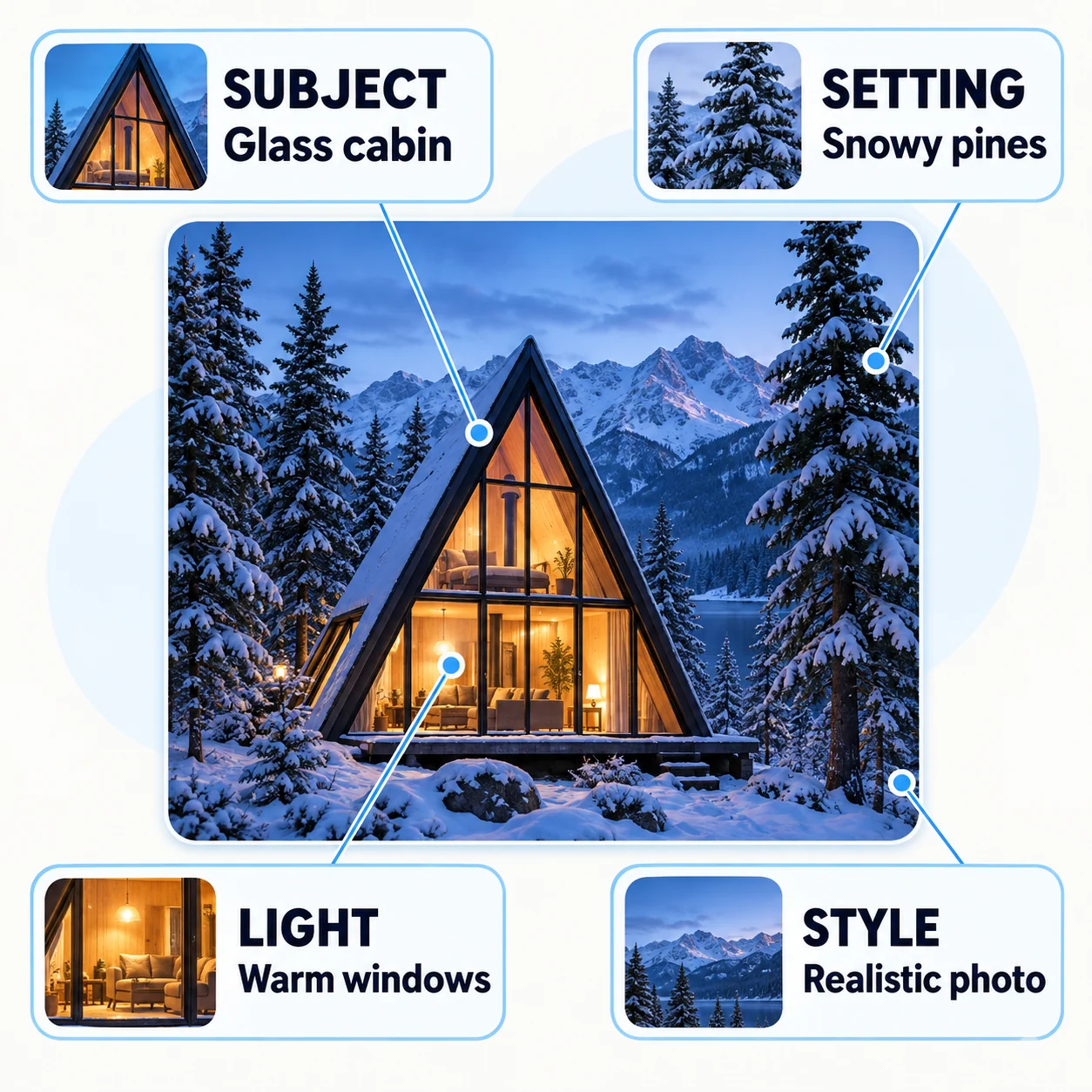
Name the object, person, or scene and say what must be preserved. For GPT Image 2.5, concrete nouns and visible materials are easier to review than a stack of abstract adjectives.
Explain where the subject is, what the light is doing, and where the image will be used. A clear constraint gives GPT Image 2.5 a way to make choices.
If the first image is close, keep the successful parts and ask for one focused change. This GPT Image 2.5 workflow makes it easier to compare iterations.
Use GPT Image 2.5 as a visual iteration loop: set the question, review the composition, then refine the detail that matters.
Start with a subject, setting, intended shape, and visual direction. Ask GPT Image 2.5 for the first composition, then read the result as a draft with a purpose.
Write a brief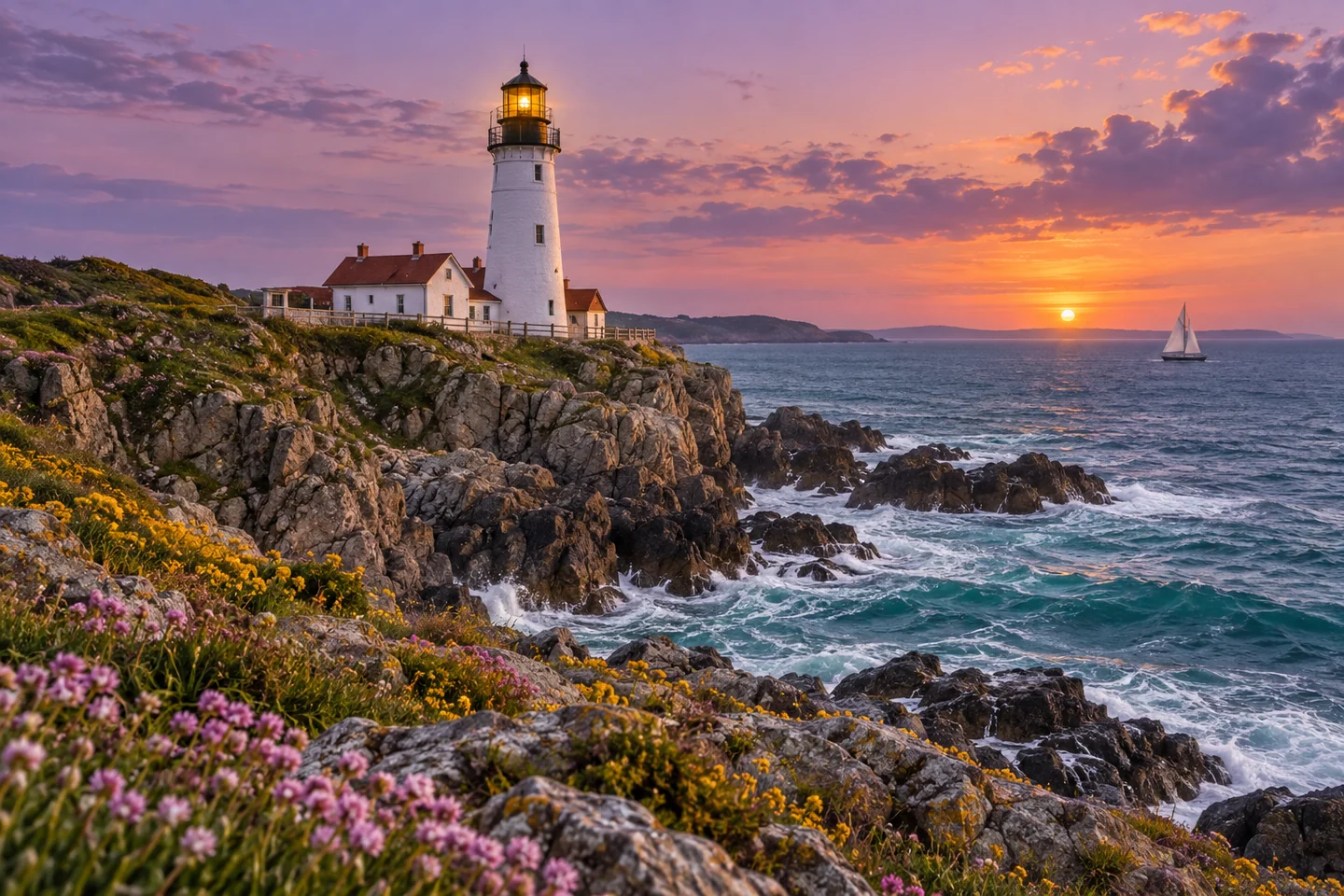
Select a supported 1K, 2K, or 4K output and an aspect ratio that matches the final placement. GPT Image 2.5 supports square, landscape, and portrait directions; leave room for a crop or headline.
Choose a shape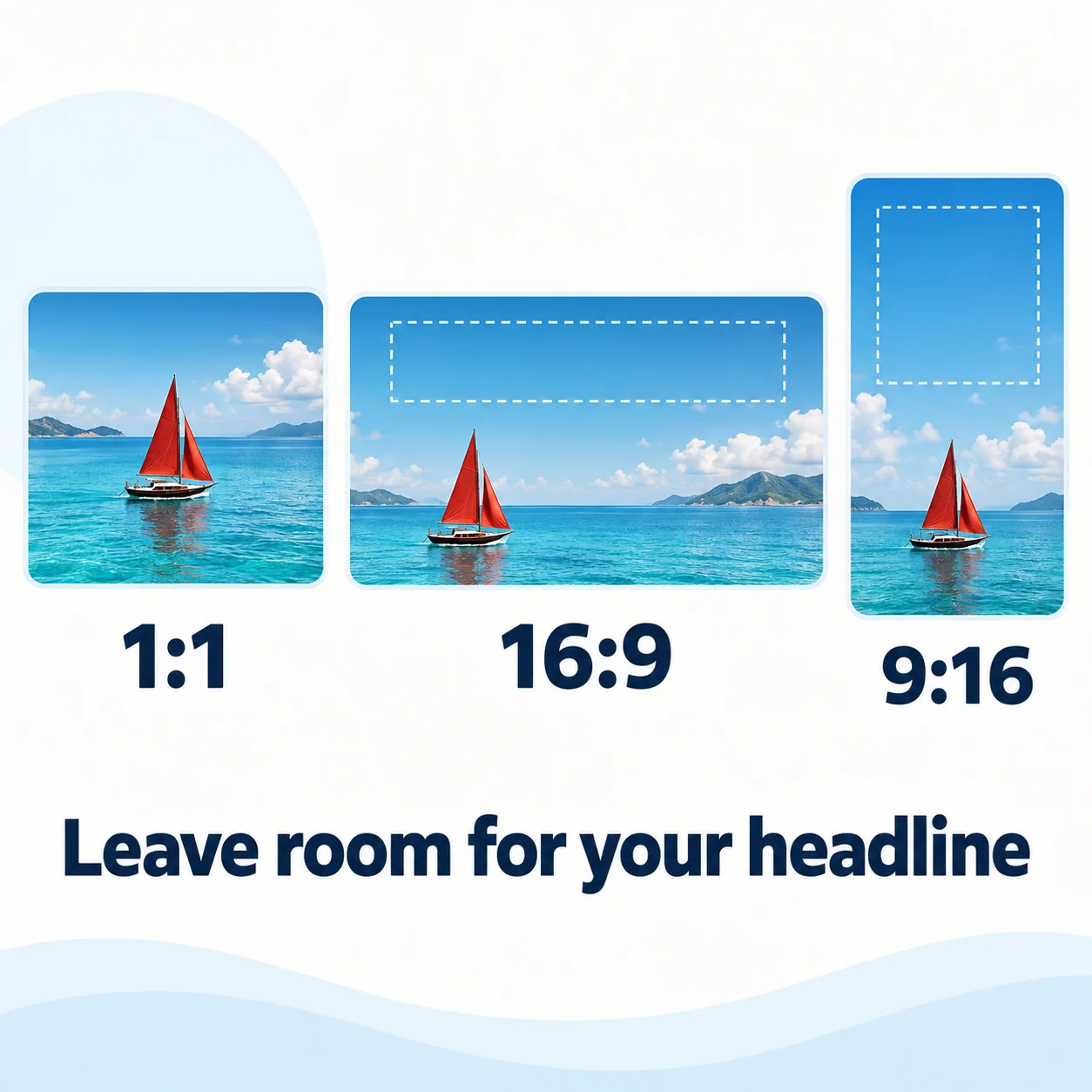
Check text, faces, edges, product details, and the parts you asked to preserve. Use GPT Image 2.5 for another focused pass, or open the AI Image Editor when a more targeted edit is the next step.
Review a result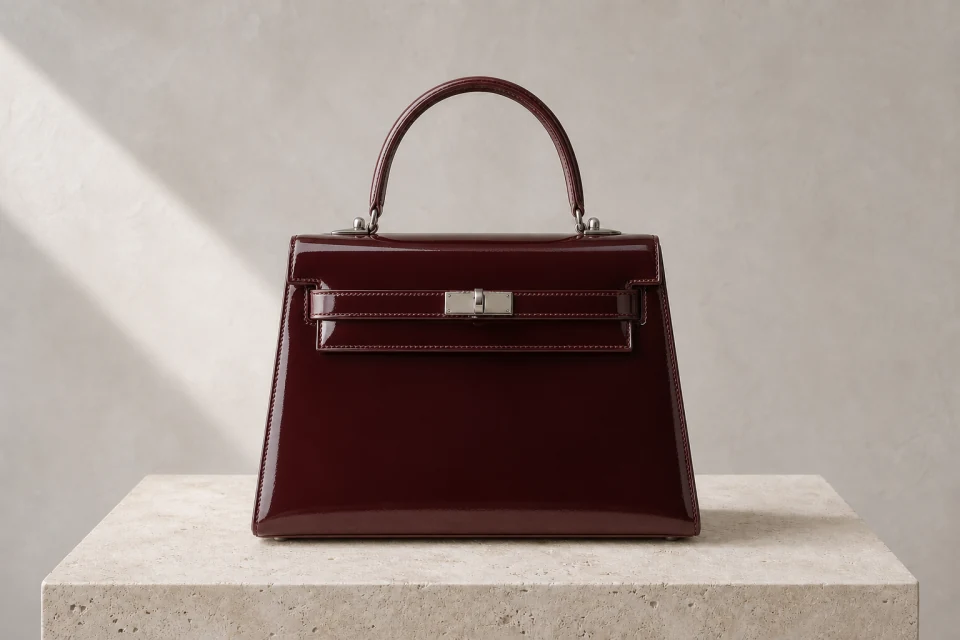
Choose GPT Image 2.5 when the image needs a clear brief, a controlled composition, or a meaningful edit. iLoveAIImg gives you a practical place to test the direction before you download a version for your next task.
In iLoveAIImg, build a product concept with a chosen surface, light, camera angle, and room for campaign copy. Use a reference when the shape or color of an existing item matters.
Describe the headline, hierarchy, margins, and visual elements for a poster or social creative. Inspect the final text and use your design tool for any typography that must be exact.
Explore a character, environment, cover, or story frame when you want a concrete direction before investing in a full production. Keep the prompt focused on the scene decision you are testing.
Start from a reference in iLoveAIImg when identity, palette, or framing needs to carry into another setting. State what should stay, what should change, and what the viewer should notice next.
Choose monthly, yearly, or one-time credits.
Start free
No payment details needed
A small daily allowance for occasional ideas.
Pro
Recommended for regular creation
Billed monthly
For individual creators making images throughout the month.
Max
Billed monthly
For higher-volume creation, more iterations, and larger image batches.
Start free
No payment details needed
A small daily allowance for occasional ideas.
Pro
Save 50%Recommended for regular creation
$120.00 billed yearly
For individual creators making images throughout the month.
Max
Save 50%$480.00 billed yearly
For higher-volume creation, more iterations, and larger image batches.
Start free
No payment details needed
A small daily allowance for occasional ideas.
1,500 credits
One-time payment
Add credits for a specific project without starting a subscription.
3,000 credits
One-time payment
Add credits for a specific project without starting a subscription.
Practical answers about the model, inputs, output choices, and reviewing the image before use.
GPT Image 2.5 is an image generation and editing model family. On iLoveAIImg, this page exposes GPT Image 2.5 Flare through the public workbench so you can create from a prompt or refine reference images.
Yes. Start with a required text prompt and choose an example direction, then add optional reference images when identity, layout, or a source object matters.
The current iLoveAIImg workbench accepts up to 16 optional reference images for GPT Image 2.5. Use clear, relevant images and state what each reference contributes.
The current page offers 1K, 2K, and 4K options with supported square, landscape, and portrait aspect ratios. The available choices and quoted credit cost are shown in the workbench before submission.
You can request short words or layout copy, but generated lettering and fine details can vary. Put essential text in quotes, describe its placement, and check spelling, logos, and small edges before publishing.
The iLoveAIImg workbench shows the current credit cost for the selected GPT Image 2.5 resolution before submission. That is an iLoveAIImg task quote, not OpenAI API pricing; your ability to submit also depends on the available balance and current usage rules.
No. iLoveAIImg is an independent service that accesses GPT Image 2.5 through APIMart. OpenAI's official model documentation describes the upstream model; this page documents the controls and limits available in this workspace.
Guests should download a result before leaving the page. Signed-in task history currently has a seven-day retention period, so keep important files on your device or in Assets.
Bring a product, poster, or reference edit into the workbench. GPT Image 2.5 gives you a concrete first direction to review, then refine.