iLoveAIImg

Image to Image AI

Start with your photo. Try a new style, setting or mood, and tell the generator which details to keep.

Image to Image AI workbench

Create your result

Recent images

Review, continue editing, or download your results.

Give the picture you have a new direction

A reference gives you a starting point for the subject and composition. Your words describe the version you want to explore.

Try the same subject in another medium

Turn a photo into watercolor, a storybook illustration or a rounded 3D look. Name the new medium, then identify the shape, pose or colors you want to carry over. A clear subject makes it easier to compare different directions.
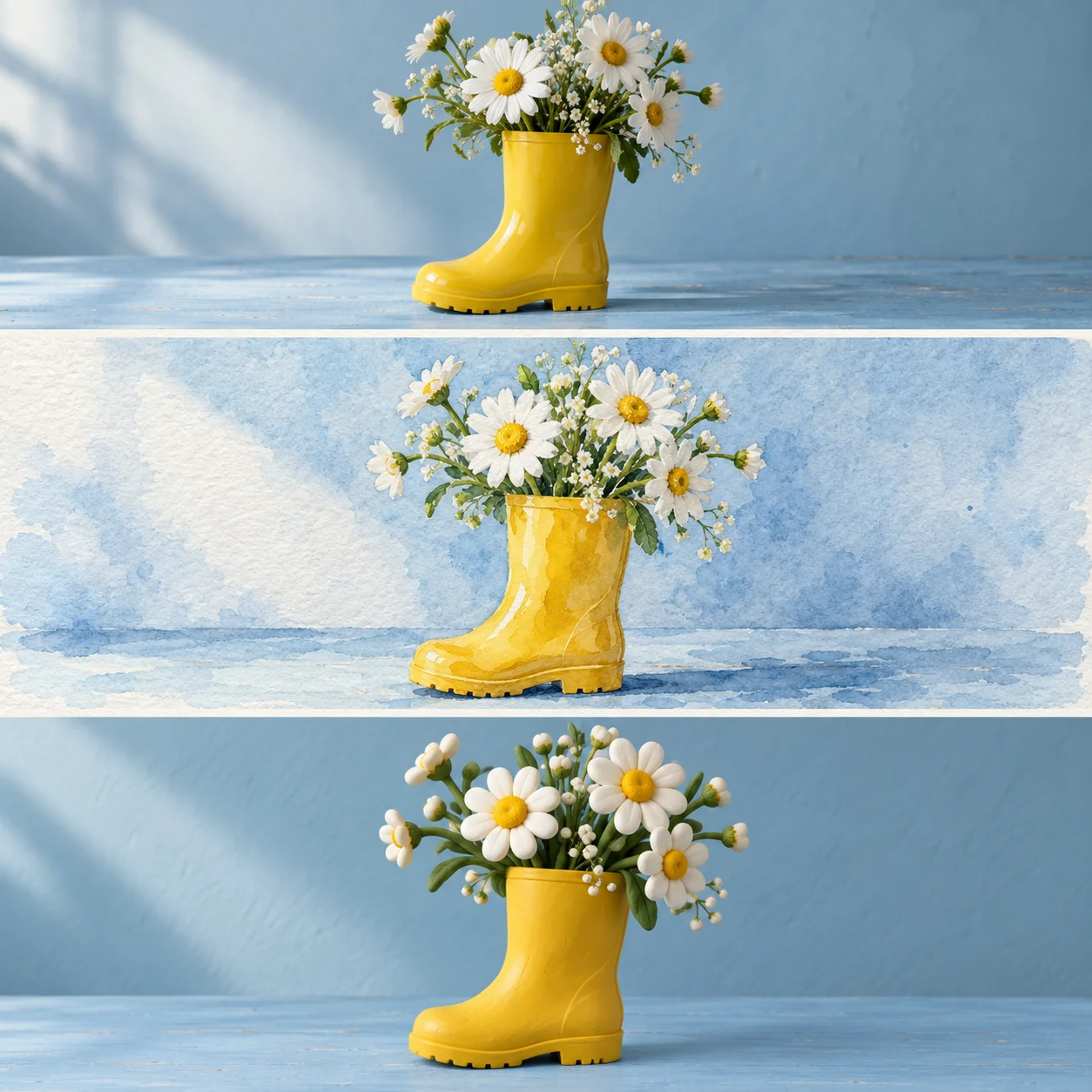
Creative reference: yellow rain boots with daisies in photographic, watercolor and clay styles

Picture your subject in a different setting

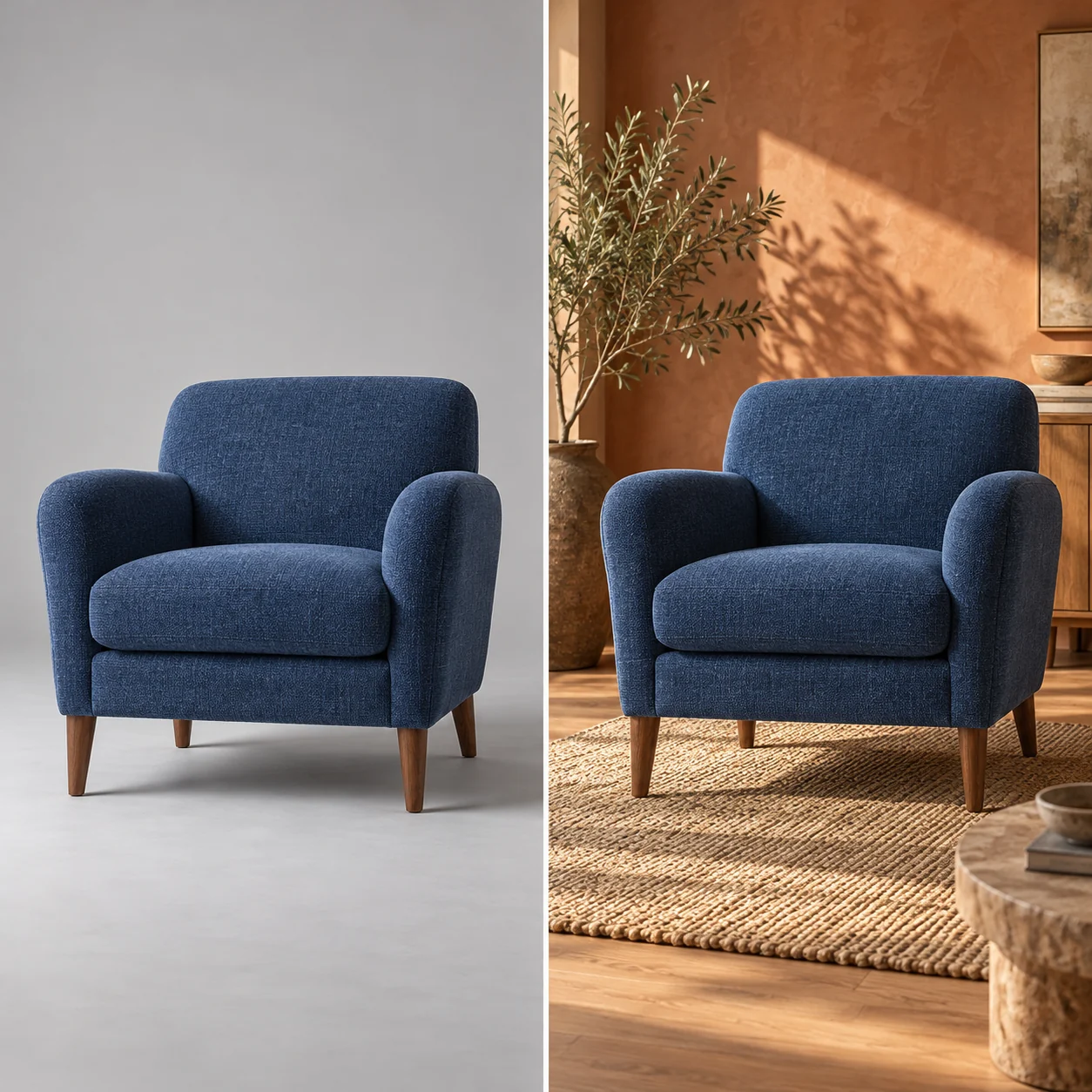
Use a product or furniture photo as the starting point for a scene concept. Describe the room, light and atmosphere, and ask to keep the subject’s defining shape and color. Compare the result with the source before using it in a listing or presentation.

Creative reference: the same blue armchair in a gray studio and a warm living room

How to use image to image AI

Choose a clear starting image and make one deliberate change at a time.

  1. 1

    Add your reference

    Upload the photo you want to reinterpret, or select one from your Assets. Keep the main subject easy to see.

  2. 2

    Describe the new version

    Name the new style, scene or lighting. Say which subject details should stay, then choose your model and image size.

  3. 3

    Compare and keep

    Inspect faces, lettering and product details at full size. Download the version you like or use it as the reference for another request.

Image to image AI questions

Do I need a reference photo?

Yes. This page starts from at least one reference image and a written prompt. To create from words alone, open Text to Image. For example, add a portrait and ask for a watercolor treatment while keeping the pose and framing.

How is this different from AI Image Edit?

Use this page to explore a new style or scene from your reference. AI Image Edit is an entry for focused changes to an existing photo. Both use the same available image models, so your reference and instructions determine the transformation.

Which files and how many references can I use?

Use PNG, JPG or WebP images. Each file can be up to 10 MB, with up to 12 MB across the reference images in one request. This generator accepts up to three references, subject to the selected model’s limit. When using several images, explain which one supplies the subject, setting or style.

Will the person or product stay exactly the same?

You can ask to keep a face, pose, product shape or composition, but the result is newly generated and details can change. Check faces, logos, small text and edges against your original. More specific instructions help communicate your intent without guaranteeing an exact match.

How do I compare styles with image to image AI?

Keep the same reference photo, model, aspect ratio and resolution, then change only the style in your prompt. Compare the downloaded versions side by side so you can judge the difference in texture and mood. Each version is a separate generation request with its own displayed credit cost.

Are the example comparisons guaranteed results?

No. These are creative illustrations of possible directions, not a benchmark or customer portfolio. The result depends on your photo, prompt, chosen model and image settings.

How much does a new version cost?

The generator shows the current credit cost for your selected model and image settings before submission. Available free credits may cover eligible requests; paid credits and current account limits apply. Choosing a model or adding a reference does not start generation.

Can I download the result or keep working on it?

Download a completed result from the workbench. Signed-in users can find recorded work in Workspaces and reuse saved images from Assets. Keep a downloaded copy of images you need; task history and storage availability follow the account’s current retention rules.