Fast, detailed image creation for everyday ideas.
Section library
Explore the actual components, then use their content props to compose a page. Each preview includes its source and a minimal usage example.
Hero
src/blocks/hero.tsx<Hero content={content.hero} brand="Your brand" action={action} />Component preview
Hero
Introduce the page with a headline, a short description and a primary action. Pass brand separately and build the action in the page.
ModelOverview
src/blocks/model-overview.tsxImage-led model catalog. Pass published models and locale; reuses the model directory cards.
<ModelOverview content={content.modelOverview} models={models} images={content.modelOverviewImages} locale={locale} selectionHref="/text-to-image-free#generator" action={action} />Explore available image models
A visual catalog with model descriptions, output information and existing model-page links.
 NEW
NEWGPT Image 2.5
Create images and refine references with Flare, at the same credit cost as GPT Image 2.
- Generate and edit
- Up to 16 references
- 1K–4K
1K · 2 credits / imageChoose in generator

GPT Image 2
Precise prompts, clean in-image text, and product-ready edits.
- Generate and edit
- Up to 16 references
- 1K–4K
1K · 2 credits / imageChoose in generator
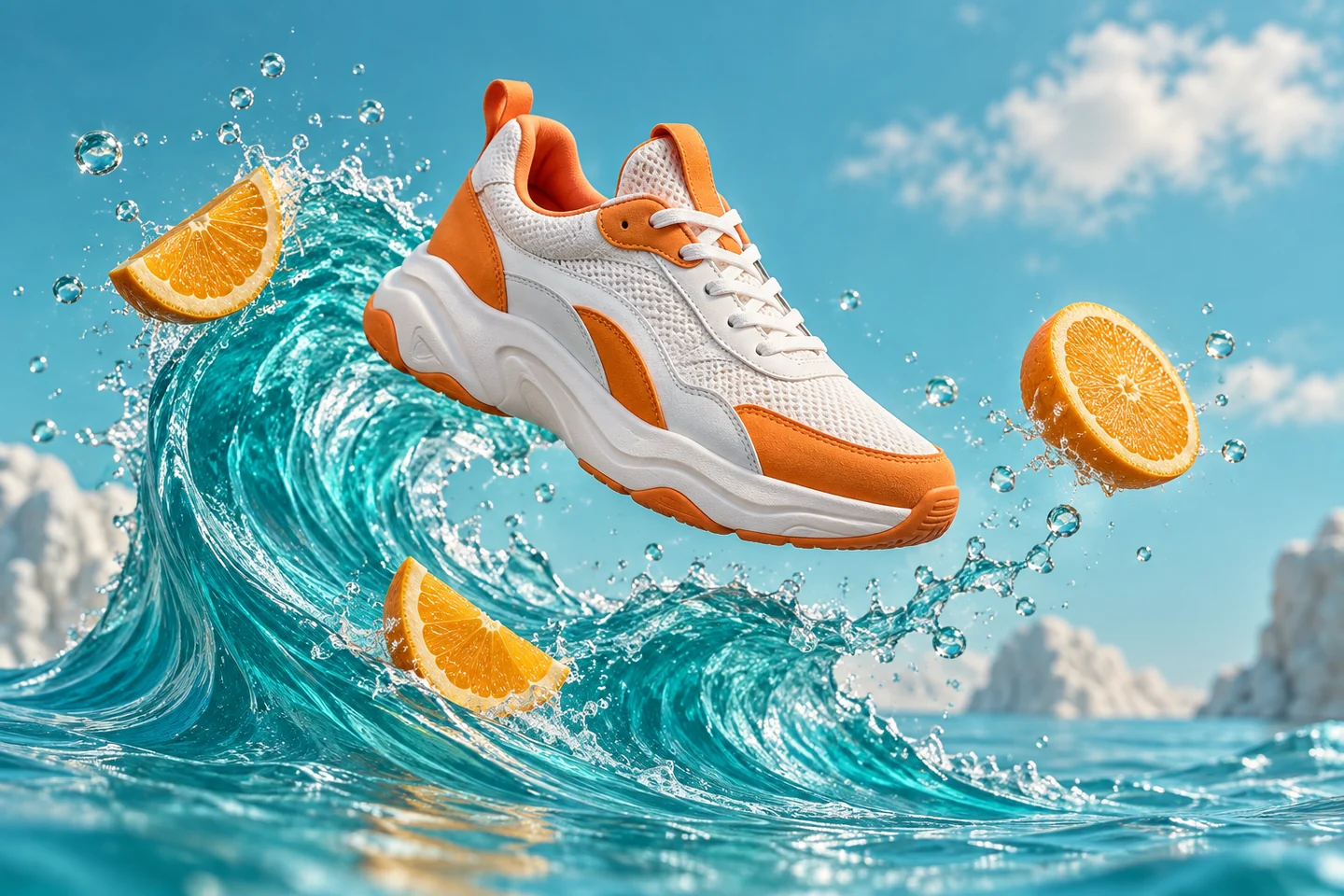 PRO
PRONano Banana Pro
High-detail 1K–4K generation for polished campaign visuals.
- 1K–4K output
- Up to 14 references
- Professional detail
2K · 8 credits / imageChoose in generator
 PRO
PROSeedream 5.0 Pro
Professional 1K/2K generation with cinematic detail and multi-reference control.
- 1K and 2K
- Up to 10 references
- Cinematic detail
2K · 17 credits / imageChoose in generator
AiImageGenerationModels
src/blocks/ai-image-generation-models.tsxCompact published image model choices with shared icons, badges and current model descriptions.
<AiImageGenerationModels content={content.product.directory} />AI Image Generation Models
Annual plans · save 50%Choose a model by the kind of image you want to make. Compare its strengths in detail, editing control, and speed.
GPT Image 2
HOTFollows detailed prompts for text-rich designs.

Nano Banana Pro
PROFine control over lighting, detail, and typography.

Seedream 5.0 Pro
PROTurns complex information into detailed visual layouts.
Nano Banana 2
NEWBalances detailed images with fast generation.
Nano Banana 2 Lite
FASTQuick drafts and edits for exploring visual ideas.
Nano Banana
FASTKeeps characters recognizable across scene changes.
Seedream 5.0 Lite
NEWInterprets complex instructions and reference styles.
ModelUsageGuide
src/blocks/model-usage-guide.tsxCompact comparison table for model credit costs and plan-level image estimates.
<ModelUsageGuide content={content.modelUsageGuide} rows={rows} locale={locale} />Compare model usage with plan credits
Show representative model costs beside the estimated output from two plans without turning the pricing cards into a large matrix.
| Image model | Example output | Credits / image | Pro estimate | Max estimate |
|---|---|---|---|---|
| GPT Image 2 | 1K | 2 | 500 images | 2,500 images |
| Seedream 5.0 Pro | 1K | 9–14Variable cost | 71–111 images | 357–555 images |
Explain the assumptions and point users to the final quote shown before submission.
InspirationGallery
src/blocks/inspiration-gallery.tsxSystem-styled image cards with source attribution and an optional prompt-selection action.
<InspirationGallery content={content.product.inspirationGallery} />View source gallery
Get inspired, then make it your own
A system-styled image card grid for visual directions and prompt ideas.
Open-source gallery examples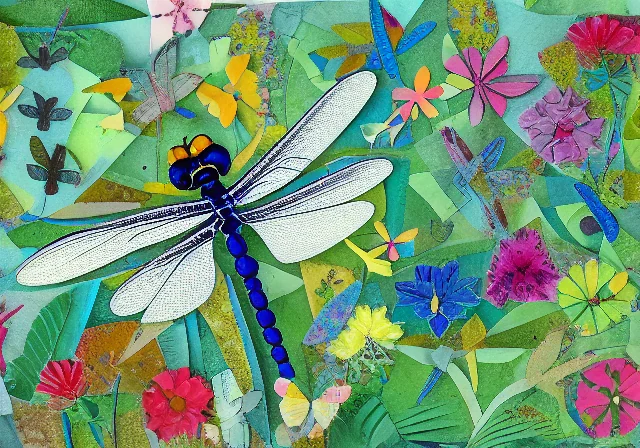
Paper-cut color
A tactile collage direction.

Travel poster
Bright scale and open air.
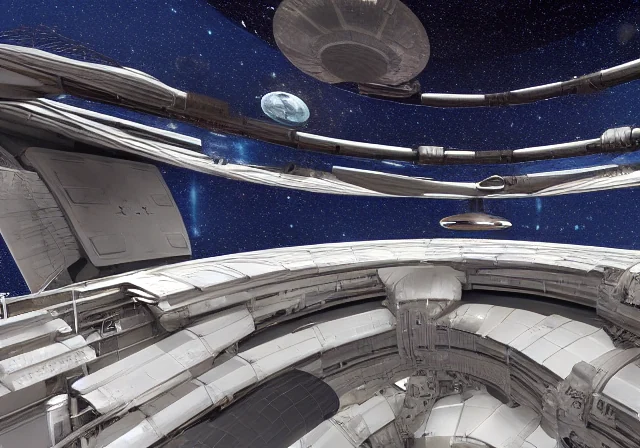
Future architecture
Structure becomes atmosphere.
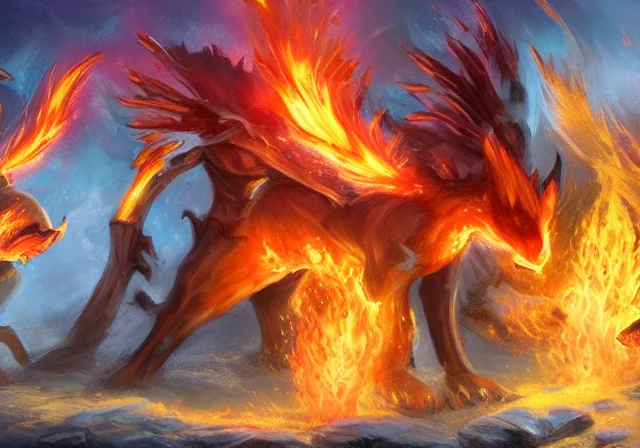
Elemental energy
A focused fantasy key art direction.
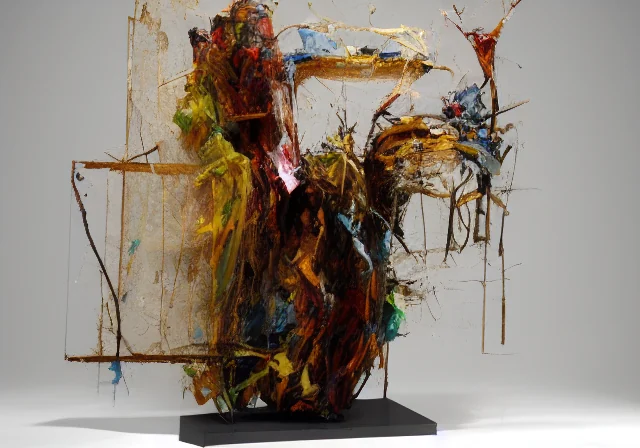
Material study
An object with a point of view.
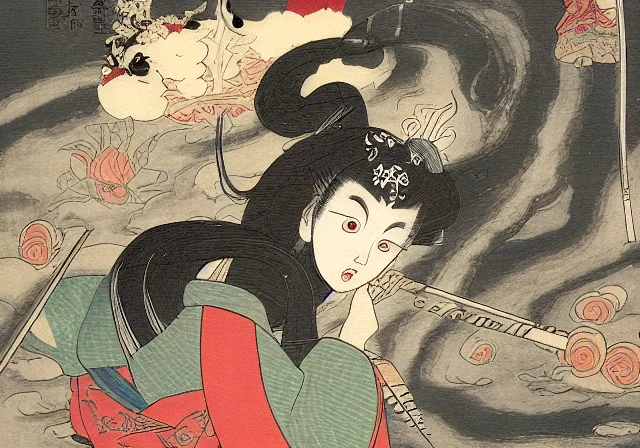
Storybook language
Period texture and atmosphere.
UserReviews
src/blocks/user-reviews.tsxA verified-feedback slot that renders quote cards only when real review records are supplied.
<UserReviews content={content.product.userReviews} />Verified user feedback
Supply approved quotes and context when real feedback is available.
Verified feedback will appear here when it is available.
TextColumns
src/blocks/text-columns.tsxReading-oriented image and notes. Supports an optional square visual and stacked mobile content.
<TextColumns content={content.textColumns} />Explain the idea beside the image
Use a visual and a short reading column to explain a creative choice.
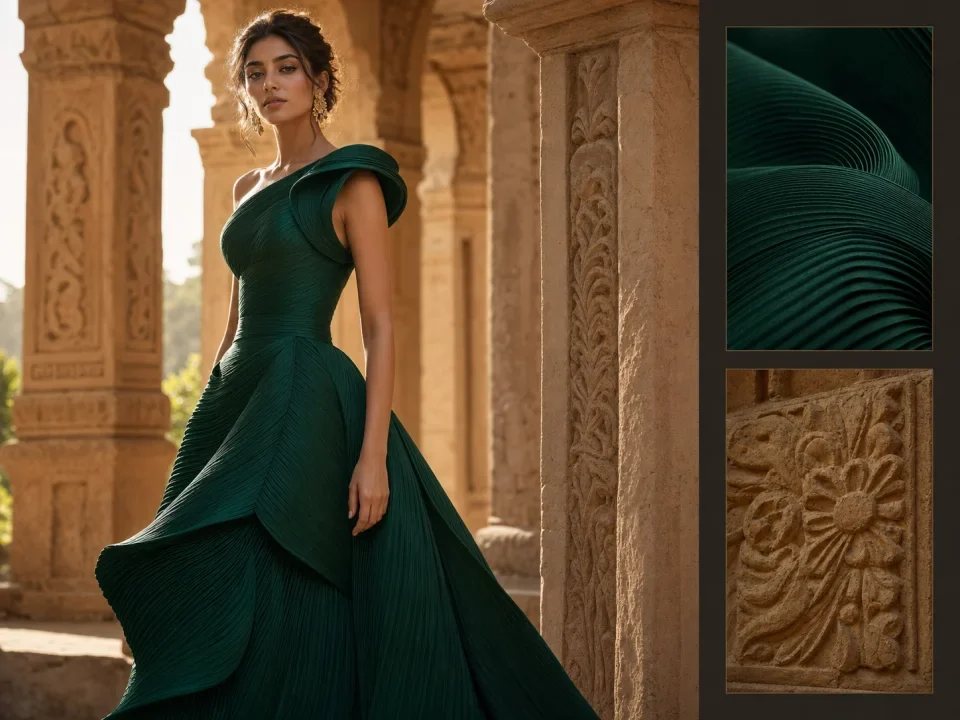
Name the direction
Describe the subject, composition and mood that make this image useful.
Choose the next change
Keep what works and focus the next instruction on the missing detail.
EditorProofStrip
src/blocks/editor-proof-strip.tsxA compact factual proof strip for a prompt-led tool page.
<EditorProofStrip content={content.product.editorProofStrip} />One clear sentence. One focused edit.
EditorBeforeAfter
src/blocks/editor-before-after.tsxAlternating image-and-copy rows for before-and-after editing examples.
<EditorBeforeAfter content={content.product.editorBeforeAfter} />Make the change visible
Alternate result-led rows with a responsive image frame.
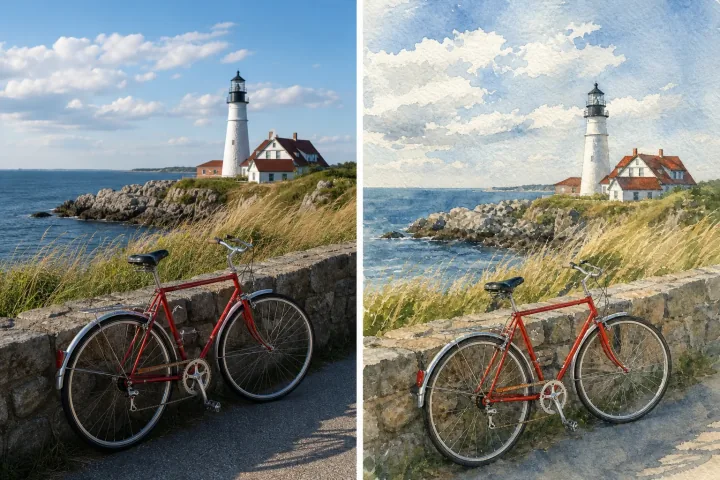
Change the setting
Show the starting image and the result beside a focused explanation.

Try a new direction
Use the same row structure for a second, distinct image task.
EditorTrust
src/blocks/editor-trust.tsxThree decision-support cards with an icon, heading and short explanation.
<EditorTrust content={content.product.editorTrust} />Reasons to keep the workflow focused
Three compact cards for decision support.
Plain-language control
Explain the target and requested change.
Visible choices
Keep model and output options near the task.
Review before keeping
Inspect the result before downloading it.
EditorProcessSteps
src/blocks/editor-process-steps.tsxA three-step process row with connected desktop icons and a mobile stack.
<EditorProcessSteps content={content.product.editorProcessSteps} />Three steps from source to result
A connected process row that stacks on mobile.
- 1
Upload the image
Start with the source you want to change.
- 2
Say what to change
Write a clear, focused instruction.
- 3
Review and download
Keep the version that fits your purpose.
EditorShowcaseCarousel
src/blocks/editor-showcase-carousel.tsxA responsive horizontal carousel for image-led examples with previous and next controls.
<EditorShowcaseCarousel content={content.product.editorShowcaseCarousel} />Visual edit directions
A horizontal card carousel for examples and outcomes.

Product scene
A product image with room for a clear visual brief.

Portrait direction
A portrait that can take a different setting or mood.
Style exploration
A visual comparison for a new treatment.
EditorPromptCarousel
src/blocks/editor-prompt-carousel.tsxA horizontal carousel of practical prompt examples without invented testimonials.
<EditorPromptCarousel content={content.product.editorPromptCarousel} />Prompt cards
A horizontal set of practical instruction examples.
Change the setting
“Replace the busy room with a neutral wall; keep the subject.”
Remove a distraction
“Remove the object on the right; continue the surface behind it.”
Try another treatment
“Turn this scene into a paper illustration; keep the composition.”
EditorPromptCarousel · marquee
src/blocks/editor-prompt-carousel.tsxA two-row, auto-scrolling prompt marquee that keeps practical examples visible without inventing testimonials.
<EditorPromptCarousel content={content.product.editorPromptCarousel} layout="marquee" />Prompt cards
A horizontal set of practical instruction examples.
ProofFeature
src/blocks/proof-feature.tsxResult-led image and copy with a page-owned action slot.
<ProofFeature content={content.proofFeature} action={action} />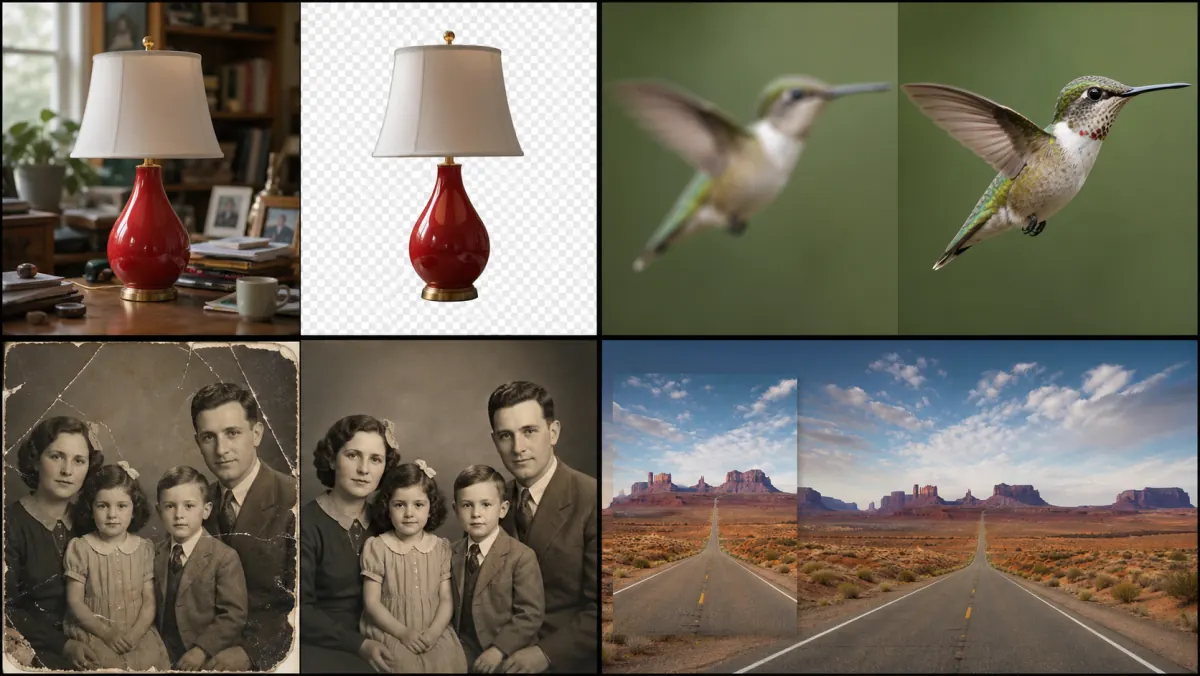
Show the useful result first
Pair a real image example with a focused explanation and a page-owned action.
TabbedImageShowcase
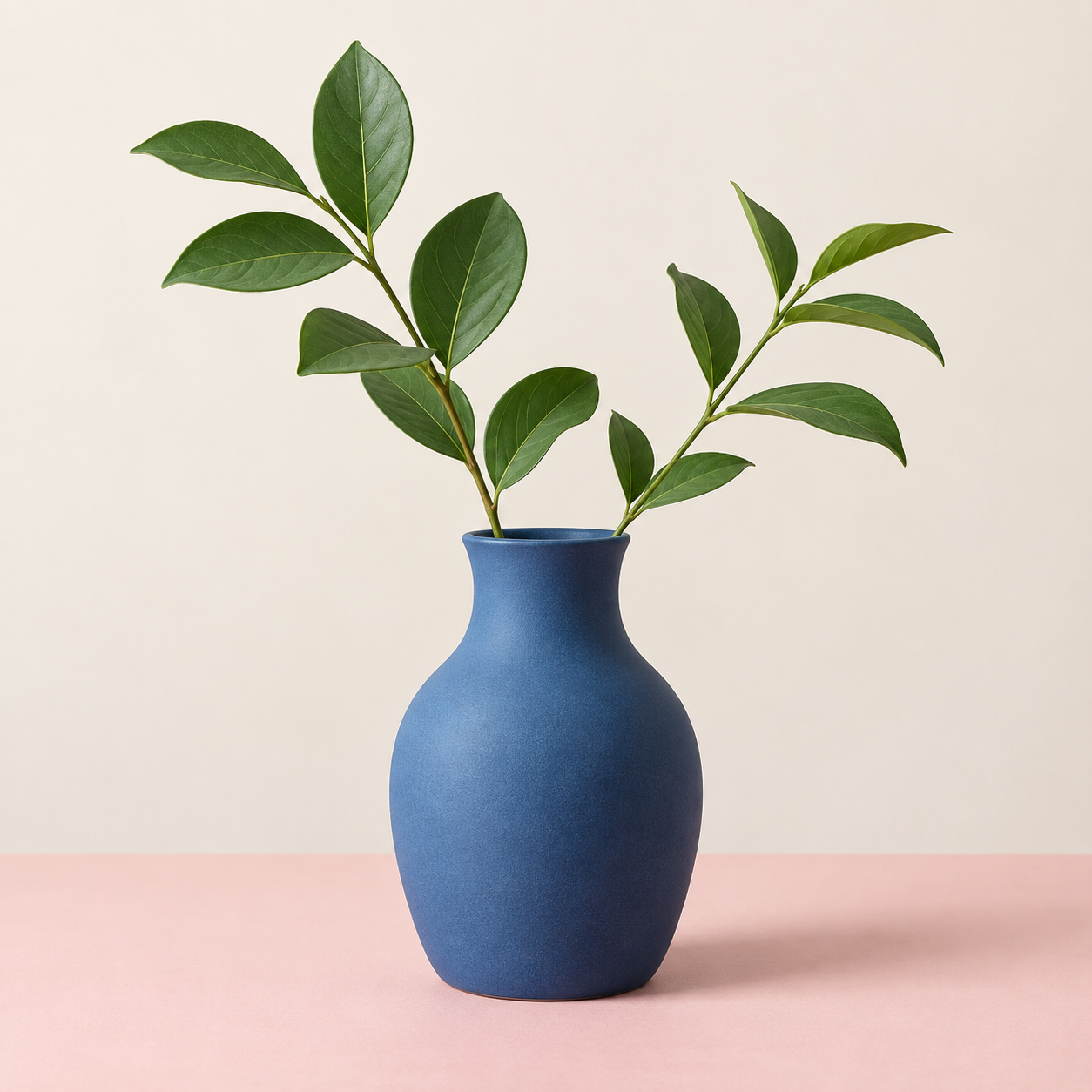
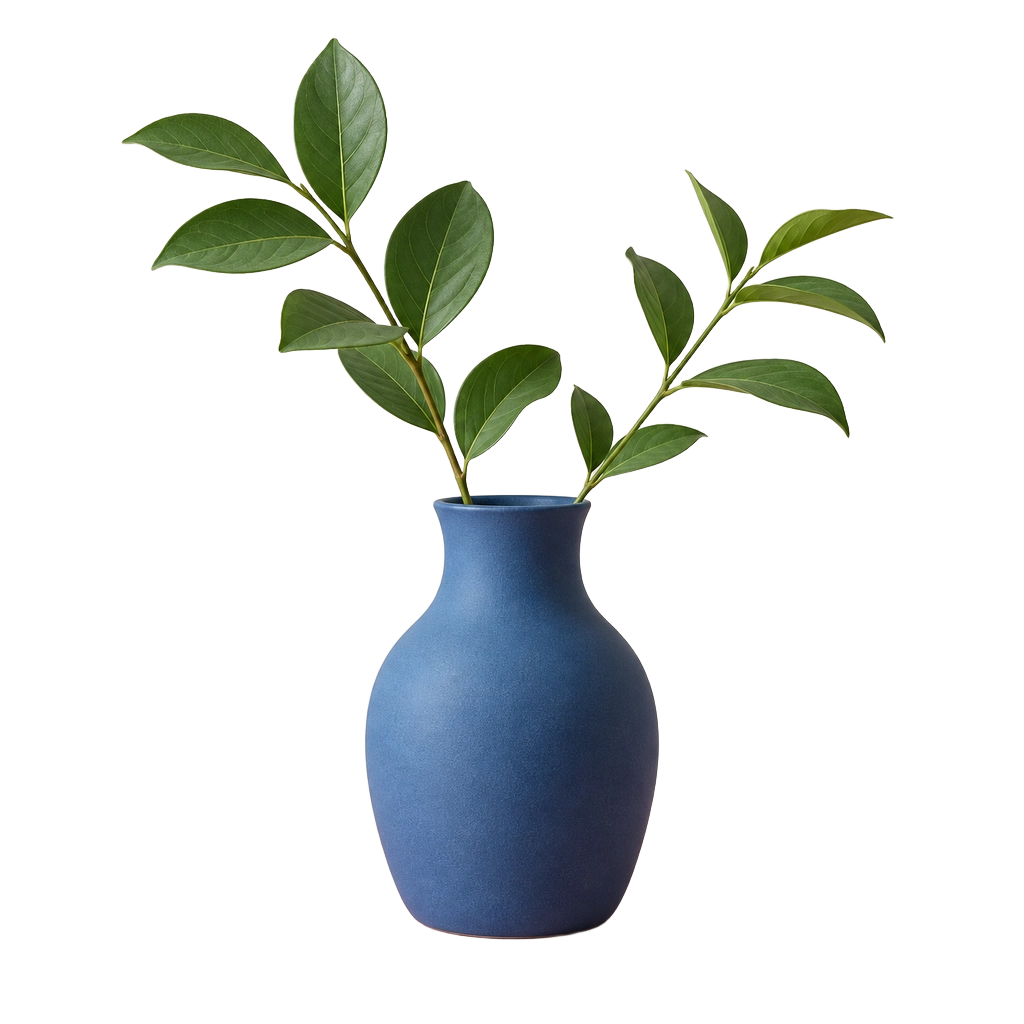
src/blocks/tabbed-image-showcase.tsxTabbed image examples that keep related visual directions in one section.
<TabbedImageShowcase content={content.tabbedImageShowcase} />Explore visual examples
Use tabs when several related example groups need to share one visual area.
UseCaseGrid
src/blocks/use-case-grid.tsxA compact two-column grid connecting capabilities to concrete use cases.
<UseCaseGrid content={content.useCaseGrid} />Give a capability a clear use
Use compact cards to connect a product capability with a concrete task.
Product photos
Explain how a subject fits a product workflow.
Portraits
Explain how the same capability helps with people.
Social posts
Connect the feature to a quick publishing task.
Graphics
Describe a simple design asset use.
ImageActionGrid
src/blocks/image-action-grid.tsxA responsive grid of image-led follow-up actions with optional closing copy.
<ImageActionGrid content={content.imageActionGrid} />Show the next actions
Image-led cards can keep a follow-up workflow concrete and easy to scan.
Change a background
Show one practical continuation from the first task.
Stage a product
Use another card for a related visual outcome.

Prepare a campaign
Keep the card description tied to a real next action.
Use the closing sentence for a concise next step.
ImagePathways · alternating
src/blocks/image-pathways.tsxAlternating image and text rows for multiple distinct creative tasks; stacks on mobile.
<ImagePathways content={content.pathways} layout="alternating" />Make something new. Keep shaping what you love.

Give your next idea a first image.
A story illustration, a post cover, or a product in a new setting: describe the subject, light, and style. ILoveAIImg turns that direction into an image without a source photo. Try a different detail, review the result, and develop the version that fits your idea.

Build on the photo you already have.
Change a room’s mood, try a new background, or turn a portrait into an illustration. Tell ILoveAIImg what to change and what to keep, then inspect the result. Continue editing from a version you like instead of starting over. For a transparent cutout, choose Background Remover.
Features
src/blocks/features.tsx<Features content={content.features} />Features
Present features in an icon card grid. Pass title, description and items; each item has an id, icon, title and description.
Feature 1
Explain one capability in a short sentence. Repeat this item for each feature.
Feature 2
Explain one capability in a short sentence. Repeat this item for each feature.
Feature 3
Explain one capability in a short sentence. Repeat this item for each feature.
Features · images
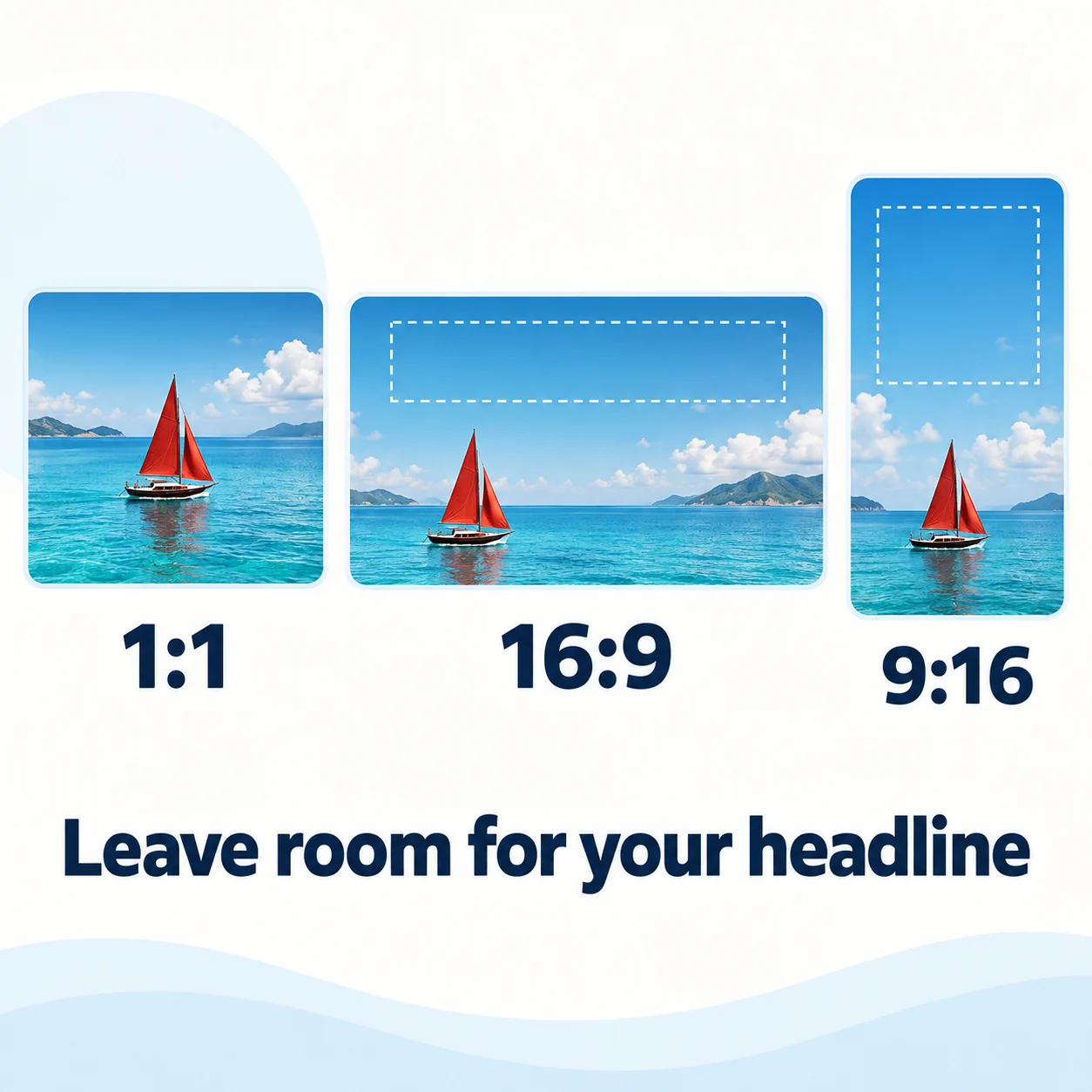
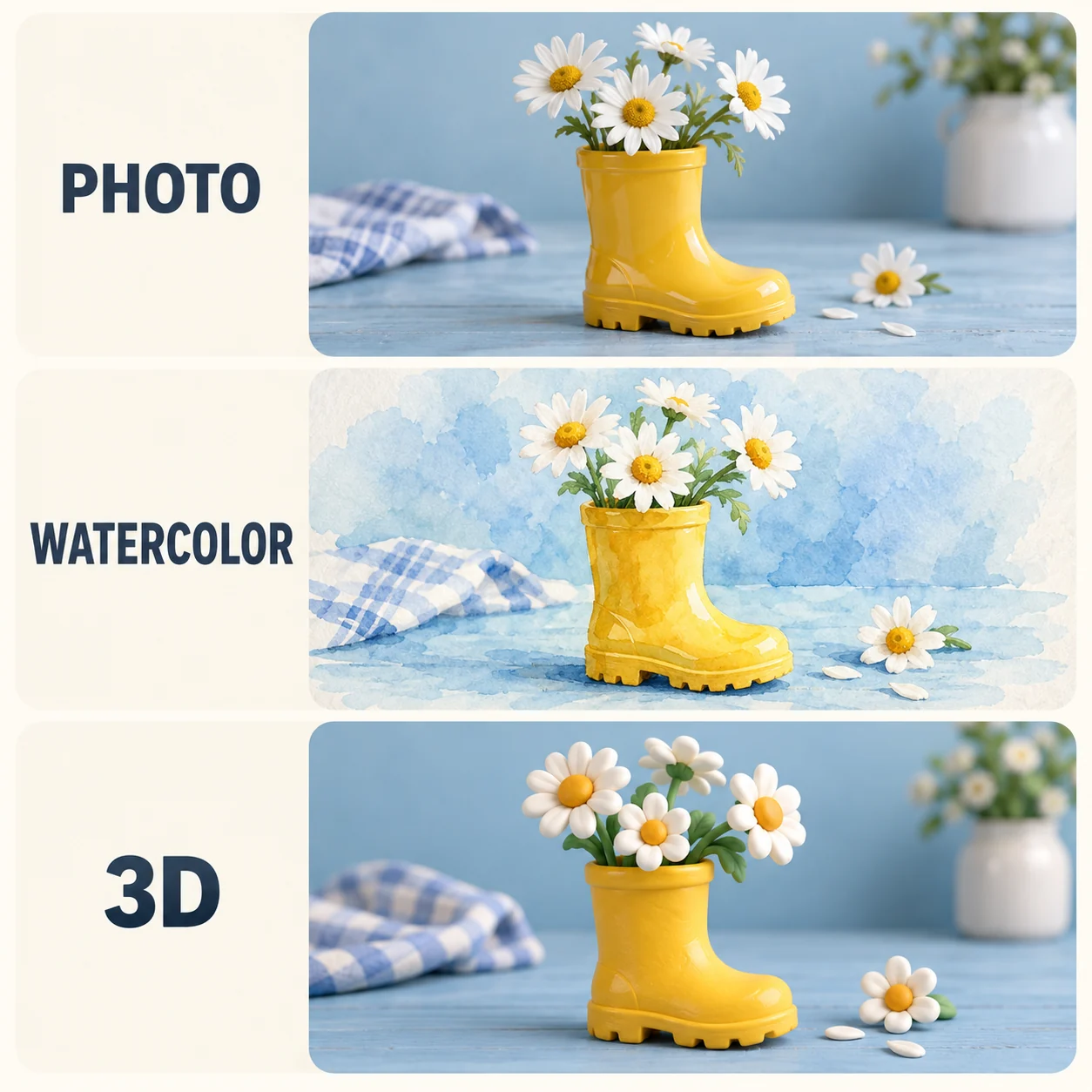
src/blocks/features.tsxUse page-supplied explanatory images above feature cards. Images are shown completely, and stack on narrow screens. Use a unique id for each instance.
<Features id="feature-guide" content={content.features} images={content.featureImages} />Features
Present features in an icon card grid. Pass title, description and items; each item has an id, icon, title and description.
Feature 1
Explain one capability in a short sentence. Repeat this item for each feature.
Feature 2
Explain one capability in a short sentence. Repeat this item for each feature.
Feature 3
Explain one capability in a short sentence. Repeat this item for each feature.
Pricing
src/blocks/pricing.tsx<Pricing id="pricing-preview" />More images. Better value.
Choose monthly, yearly, or one-time credits.
Start free
$0
No payment details needed
Daily allowance · up to
3 images / day · 6 credits
A small daily allowance for occasional ideas.
- Daily credits expire; unused credits do not roll over
- Images saved for only 7 days
- Basic storage space
Pro
Recommended for regular creation
$20.00/month
Billed monthly
GPT Image 2 · 1K · up to
500 images
For individual creators making images throughout the month.
- Supports more models
- Credits valid for the paid month
- Permanent storage for all your assets
- Expanded workspace storage
- 1,000 credits each paid month
- Full downloads, no added watermark
Max
$80.00/month
Billed monthly
GPT Image 2 · 1K · up to
2,500 images
For higher-volume creation, more iterations, and larger image batches.
- Supports more models
- Credits valid for the paid month
- Permanent storage for all your assets
- Largest workspace storage
- 5,000 credits each paid month
- Full downloads, no added watermark
Start free
$0
No payment details needed
Daily allowance · up to
3 images / day · 6 credits
A small daily allowance for occasional ideas.
- Daily credits expire; unused credits do not roll over
- Images saved for only 7 days
- Basic storage space
Pro
Save 50%Recommended for regular creation
$10.00/month
$120.00 billed yearly
GPT Image 2 · 1K · up to
6,000 images
For individual creators making images throughout the month.
- Supports more models
- Annual credits valid for 12 months
- Permanent storage for all your assets
- Expanded workspace storage
- 12,000 credits delivered upfront each year
- Full downloads, no added watermark
Max
Save 50%$40.00/month
$480.00 billed yearly
GPT Image 2 · 1K · up to
30,000 images
For higher-volume creation, more iterations, and larger image batches.
- Supports more models
- Annual credits valid for 12 months
- Permanent storage for all your assets
- Largest workspace storage
- 60,000 credits delivered upfront each year
- Full downloads, no added watermark
Start free
$0
No payment details needed
Daily allowance · up to
3 images / day · 6 credits
A small daily allowance for occasional ideas.
- Daily credits expire; unused credits do not roll over
- Images saved for only 7 days
- Basic storage space
1,500 credits
$29.90
One-time payment
One purchase · up to
750 images with this pack
Add credits for a specific project without starting a subscription.
- Supports more models
- Credits valid for 180 days
- Permanent storage for all your assets
- Expanded workspace storage
- One-time packs do not renew automatically
- Full downloads, no added watermark
3,000 credits
$49.90
One-time payment
One purchase · up to
1,500 images with this pack
Add credits for a specific project without starting a subscription.
- Supports more models
- Credits valid for 180 days
- Permanent storage for all your assets
- Largest workspace storage
- One-time packs do not renew automatically
- Full downloads, no added watermark
FAQ
src/blocks/faq.tsxOne FAQ component with centered, split and inset layouts. All answers remain in the initial HTML; an optional footer accepts page-owned actions.
<FAQ content={content.faq} />
<FAQ content={content.faq} layout="split" />
<FAQ content={content.faq} layout="inset" footer={link} />
Creating and keeping your images with ILoveAIImg
What can I make with ILoveAIImg?
Use Text to Image to create illustrations, covers, and scenes from words. Use AI Photo Editor to change a photo’s setting, colors, or style, and Background Remover for a transparent PNG cutout. These AI image tools give you different starting points; your signed-in workspace brings your work and its versions together.
Do I need design experience or complicated prompts?
Start with a short description of the subject, setting, and style: “an orange cat reading in a sunny garden, watercolor.” For an edit, say what should change and what should stay. ILoveAIImg provides prompt examples and controls for model, image shape, and resolution. These easy AI image tools let you adjust one instruction at a time; always review the result.
Where are my images after I refresh or close the page?
Sign in to ILoveAIImg and open Workspace to find your recorded work and available versions. Refreshing does not itself delete those records. Task history currently has a seven-day retention period, so do not treat it as a permanent archive. Save images you want to reuse in Assets and download important files. If you are trying the tools as a guest, download your result before leaving rather than relying on an account workspace.
How is saving to Assets different from downloading?
Saving in Assets keeps an image in your ILoveAIImg asset library for later use. Downloading makes a separate file on your own device. In Assets, select the image and choose Save; this keeps the asset independently of its task history. It does not preserve every task or version as a permanent project record. Keep a local copy of images you need long term.
How do I download the version I want?
Use Download on a completed result, or open a work in your ILoveAIImg workspace, select the version you want, and choose Download. You can also download an image from Assets. Choose the image first so you export the intended version. Background Remover produces a transparent PNG; other downloads use the available result file.
Can I continue editing without replacing the earlier image?
Yes. In your ILoveAIImg workspace, select an available version and choose Continue editing. The selected image becomes the input for the next operation. Describe a change or choose a compatible tool, then review the new result. A new edit creates another version rather than overwriting the selected image. You can revisit earlier versions while they remain available.
Does ILoveAIImg have free AI image tools, and how does pricing work?
Start with the available trial and daily credits. Each generation or edit uses the credits shown before you begin. Check Free credits for current eligibility and limits. The amount depends on the selected tool, model, and settings. Choose monthly, yearly, or one-time credits.
FAQ · split
src/blocks/faq.tsx<FAQ content={content.faq} layout="split" />FAQ
Answer common questions in an accordion. Pass title, description and items with id, question and answer.
How do I add a question?
Add an item with a unique id, question and answer to content.items.
Where does the copy belong?
Keep the questions and answers in the page JSON and pass the FAQ object as content.
Are answers rendered before clicking?
Yes. Answers are included in the initial HTML; the accordion controls their visibility.
FAQ · inset
src/blocks/faq.tsx<FAQ content={content.faq} layout="inset" footer={action} />FAQ
Answer common questions in an accordion. Pass title, description and items with id, question and answer.
How do I add a question?
Add an item with a unique id, question and answer to content.items.
Where does the copy belong?
Keep the questions and answers in the page JSON and pass the FAQ object as content.
Are answers rendered before clicking?
Yes. Answers are included in the initial HTML; the accordion controls their visibility.
Blog
src/blocks/blog.tsx<Blog content={content.blog} posts={posts} locale={locale} viewAllHref="/blog" />Changelog
src/blocks/changelog.tsx<Changelog content={content.changelog} entries={entries} heading="h2" />Release timeline
Changelog
Present releases in a dated timeline. Pass content and entries with version, date, formattedDate, tags and a Content component.
Latest update:
v1.0.0
Release entry
Summarize the release in one sentence.
- Example
Use the Content component for the release details. The timeline displays the date, version and tags alongside it.
CTA
src/blocks/cta.tsx<CTA content={content.cta} action={action} />CTA
Close the page with a headline, short description and action. Pass content and supply the button or link through the action slot.
ToolDirectory
src/blocks/tool-directory.tsxImage composer, public tool filters and the published image model list. Supply page copy as content; model capabilities come from the shared catalog.
<ToolDirectory content={content.directory} brand={brand} heading="h2" />Free AI Image Tools for Your Ideas— Component preview
AI images, made simple. Start free.
Try without signing inPowered by GPT Image 2.5
GPT Image 2.5 Generator workbench
Model
Find the right AI image tools on ILoveAIImg
Start with an idea, a photo, or an object to cut out. Choose a tool below to create a cover, change a scene, or prepare a transparent product image.

Free Text to Image AI Generator
Describe an illustration, product scene, or cover image. Choose a model and image size, then turn your idea into a picture.
Generate an image
AI Photo Editor
Upload a photo and describe what to change. Try a new background, adjust colors, or restyle a scene with a few words.
Edit a photo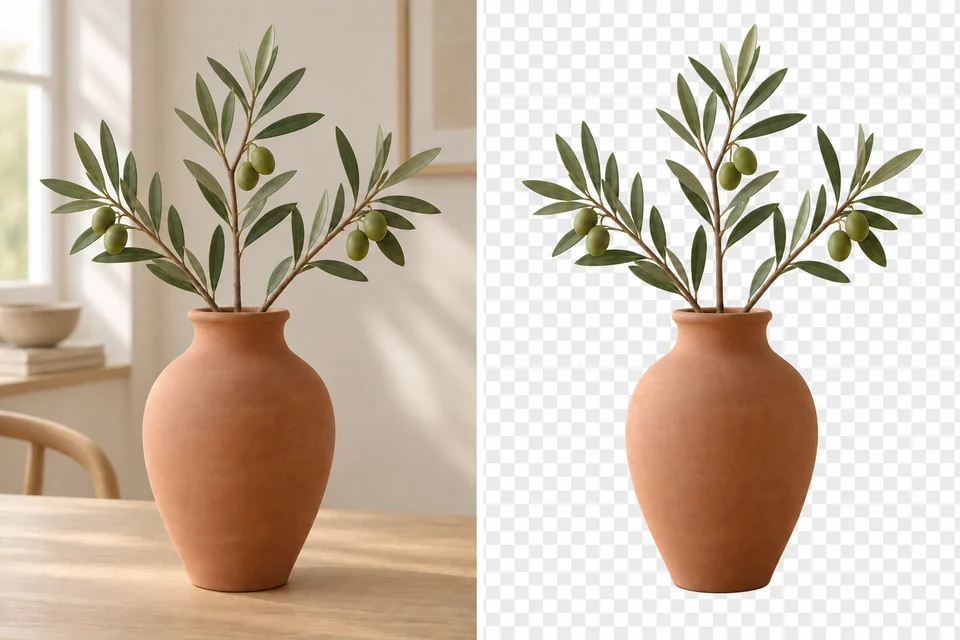
AI Background Remover
Separate a person, product, or object from its background. Download a transparent PNG for a listing, design, or new scene.
Remove a backgroundAI Image Generation Models
Annual plans · save 50%Choose a model by the kind of image you want to make. Compare its strengths in detail, editing control, and speed.
Fast, detailed image creation for everyday ideas.
GPT Image 2
HOTFollows detailed prompts for text-rich designs.
Nano Banana Pro
PROFine control over lighting, detail, and typography.
Seedream 5.0 Pro
PROTurns complex information into detailed visual layouts.
Nano Banana 2
NEWBalances detailed images with fast generation.
Nano Banana 2 Lite
FASTQuick drafts and edits for exploring visual ideas.
Nano Banana
FASTKeeps characters recognizable across scene changes.
Seedream 5.0 Lite
NEWInterprets complex instructions and reference styles.
ImagePathways
src/blocks/image-pathways.tsxTwo image cards for generation and editing. Supply headings, descriptions, responsive images, alternatives and destinations in content.
<ImagePathways content={content.pathways} />Make something new. Keep shaping what you love.
Give your next idea a first image.
A story illustration, a post cover, or a product in a new setting: describe the subject, light, and style. ILoveAIImg turns that direction into an image without a source photo. Try a different detail, review the result, and develop the version that fits your idea.
Build on the photo you already have.
Change a room’s mood, try a new background, or turn a portrait into an illustration. Tell ILoveAIImg what to change and what to keep, then inspect the result. Continue editing from a version you like instead of starting over. For a transparent cutout, choose Background Remover.
Steps
src/blocks/steps.tsxIllustrated steps with scroll progression. Supply image URLs and action destinations in content; every step stays mounted for server rendering and reduced-motion users.
<Steps content={content.steps} />From your first idea to a picture you can use
Put free AI image tools to work with ILoveAIImg: describe a picture, refine the result, and download it for your next post, design, or product listing.
01 / 03
Start with words or a photo
Describe a new illustration, cover, or product scene. Have a photo already? Upload it and tell ILoveAIImg what to change. Choose Background Remover when you only need a transparent cutout.
Choose an image tool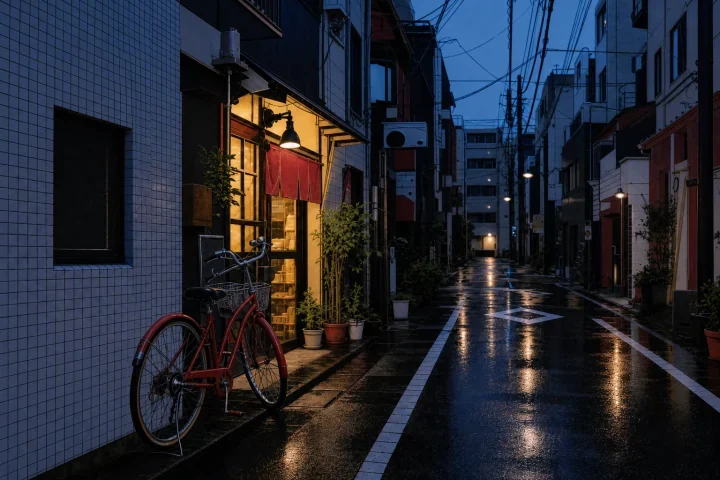
02 / 03
Review the result and keep editing
Check faces, lettering, and the details that matter. Choose Continue editing to use a result as the starting image for your next change. In your ILoveAIImg workspace, select an earlier version to take the picture in another direction.
Edit a photo
03 / 03
Keep and download your favorite
Open the version you want in your workspace and choose Download. Use Assets to save images for reuse inside ILoveAIImg, and keep a downloaded copy on your device. Saving an asset and downloading a file serve different needs.
Start creating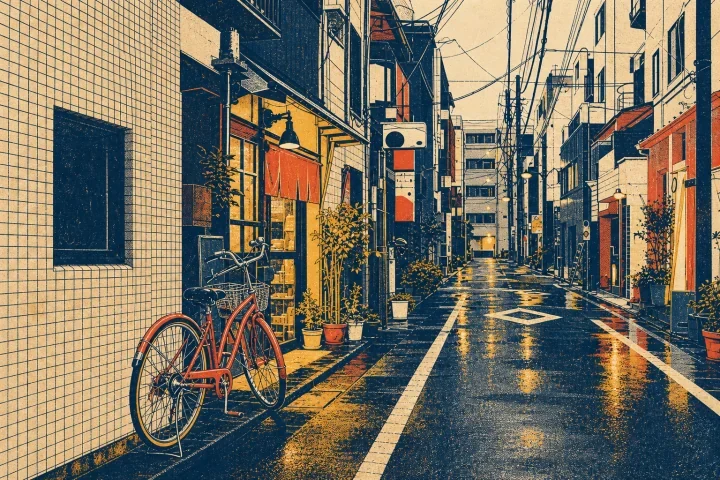
Pricing · section
src/blocks/pricing.tsxThe shared pricing section with Free, two paid tiers, monthly and annual billing, and one-time credit packs. Copy comes from shared pricing messages.
<Pricing layout="section" />More images. Better value.
Choose monthly, yearly, or one-time credits.
Start free
$0
No payment details needed
Daily allowance · up to
3 images / day · 6 credits
A small daily allowance for occasional ideas.
- Daily credits expire; unused credits do not roll over
- Images saved for only 7 days
- Basic storage space
Pro
Recommended for regular creation
$20.00/month
Billed monthly
GPT Image 2 · 1K · up to
500 images
For individual creators making images throughout the month.
- Supports more models
- Credits valid for the paid month
- Permanent storage for all your assets
- Expanded workspace storage
- 1,000 credits each paid month
- Full downloads, no added watermark
Max
$80.00/month
Billed monthly
GPT Image 2 · 1K · up to
2,500 images
For higher-volume creation, more iterations, and larger image batches.
- Supports more models
- Credits valid for the paid month
- Permanent storage for all your assets
- Largest workspace storage
- 5,000 credits each paid month
- Full downloads, no added watermark
Start free
$0
No payment details needed
Daily allowance · up to
3 images / day · 6 credits
A small daily allowance for occasional ideas.
- Daily credits expire; unused credits do not roll over
- Images saved for only 7 days
- Basic storage space
Pro
Save 50%Recommended for regular creation
$10.00/month
$120.00 billed yearly
GPT Image 2 · 1K · up to
6,000 images
For individual creators making images throughout the month.
- Supports more models
- Annual credits valid for 12 months
- Permanent storage for all your assets
- Expanded workspace storage
- 12,000 credits delivered upfront each year
- Full downloads, no added watermark
Max
Save 50%$40.00/month
$480.00 billed yearly
GPT Image 2 · 1K · up to
30,000 images
For higher-volume creation, more iterations, and larger image batches.
- Supports more models
- Annual credits valid for 12 months
- Permanent storage for all your assets
- Largest workspace storage
- 60,000 credits delivered upfront each year
- Full downloads, no added watermark
Start free
$0
No payment details needed
Daily allowance · up to
3 images / day · 6 credits
A small daily allowance for occasional ideas.
- Daily credits expire; unused credits do not roll over
- Images saved for only 7 days
- Basic storage space
1,500 credits
$29.90
One-time payment
One purchase · up to
750 images with this pack
Add credits for a specific project without starting a subscription.
- Supports more models
- Credits valid for 180 days
- Permanent storage for all your assets
- Expanded workspace storage
- One-time packs do not renew automatically
- Full downloads, no added watermark
3,000 credits
$49.90
One-time payment
One purchase · up to
1,500 images with this pack
Add credits for a specific project without starting a subscription.
- Supports more models
- Credits valid for 180 days
- Permanent storage for all your assets
- Largest workspace storage
- One-time packs do not renew automatically
- Full downloads, no added watermark
CTA · premium
src/blocks/cta.tsxA final headline and links to the public image generator and editor.
<CTA layout="premium" content={content.cta} action={actions} />What will you make with ILoveAIImg?
Put an idea into words or bring a photo. Create a first image, keep refining it, and download a version ready for your next post, design, or product listing.